tutorials
ClickHouse AI: review generated SQL in the editor before you run it
Official Cloud Assistant steps are: review generated SQL for correctness, click Open in editor, then modify and run it in the Console. That is not automatic execution, and it is not the clickhouse-local text-to-SQL path.
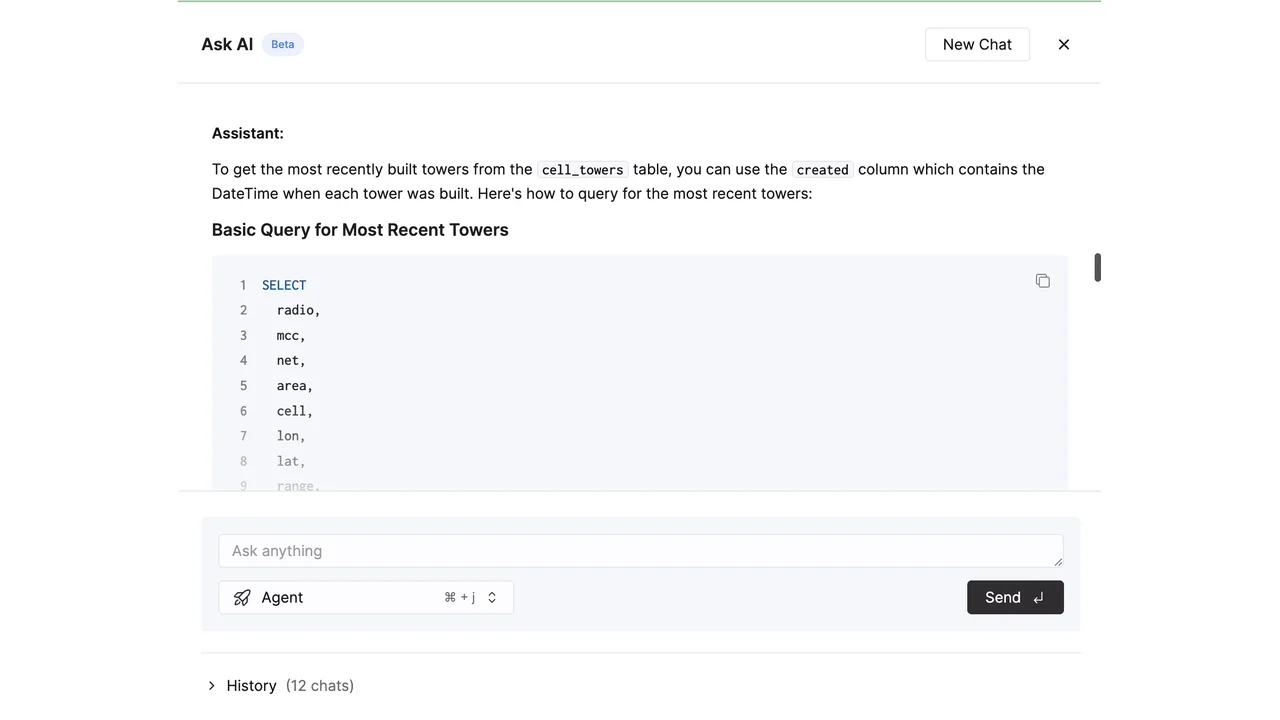
A chat answer that contains SQL is not a query you have already run. ClickHouse AI in ClickHouse Cloud can generate a query from natural language, and official documentation then gives a fixed order: review the SQL for correctness, click Open in editor to load it into a new SQL tab, and only then modify and execute it in the Console. That path is not automatic execution, and it is not the same product path as text-to-SQL in ClickHouse Client or clickhouse-local.
Official ClickHouse documentation on the Cloud Assistant and on AI compliance was reviewed on November 28, 2026 (Asia/Shanghai). We did not connect to a customer Cloud service, accept a live consent dialog, or run a generated query. This article does not show production table data, and it does not invent a cost estimator or an automatic intercept that stops an expensive query for you.
Cover source: ClickHouse's official documentation Assistant in ClickHouse Cloud, acquired November 28, 2026 (Asia/Shanghai). The unaltered official screenshot, captioned "Result actions," shows the Assistant panel after a generated answer: an Ask AI (Beta) flyout, an Assistant explanation, and a sample query against the official example table cell_towers, with the mode selector set to Agent. The table name, column names, and generated SQL are ClickHouse's official documentation example, not a service we connected and not a query we ran. The same official page has a separate figure that shows the Expand and Open in editor controls under the generated SQL; that figure was not used as the cover. No interface values were rewritten. Underlying vendor copyright is retained; no blanket reuse licence was established.
Review the SQL, open it in the editor, then run it
Official help, Assistant in ClickHouse Cloud, is direct about the sequence once the Assistant returns SQL: review for correctness; click Open in editor to load the query into a new SQL tab; modify and execute within the Console. The chat result is a draft. The editor is where you read it, change it, and decide whether it should run.
The cover image is the official Assistant panel with that generated SQL still in the chat. The following official figure on the same page shows Open in editor under the SQL block. Use that control rather than treating the chat as a place where the query has already executed.
This is not a preview-in-another-environment workflow for generated application functions, and it is not a spreadsheet-formula check. If you are still comparing analytics assistants before a purchase, see How to Evaluate AI Analytics Assistants Before You Buy. This article is the Cloud Assistant review path, not that buying guide.
Enablement, consent, and chat modes are separate steps
Official prerequisites start one level above the service: you must have access to a ClickHouse Cloud organization with AI features enabled, and the docs tell you to contact an org admin or support if that is unavailable. First use then shows a consent dialog that describes data handling and third-party LLM sub-processors. Official help says you review and accept to proceed; if you decline, the panel will not open.
The Assistant is not a single undifferentiated chat. Official help lists two modes, switched from the mode selector at the bottom left of the flyout. Agent does multi-step reasoning over schema and metadata, and the service must be awake. Docs AI (Ask) is focused Q&A grounded in official ClickHouse documentation and best-practice references. Do not write Docs AI answers as if they had queried your service, and do not write Agent results as if they were only a docs lookup. The cover shows the official sample in Agent mode.
Official help also describes starting a new chat, reopening history, and clicking Stop if a response is taking too long or diverging. Those controls do not replace the SQL review.
Keep organization settings distinct from the service-level Assistant permission
Official compliance documentation, AI compliance, separates several switches.
The setting to enable Assistant may be reviewed and modified by a user with service:manage-generative-ai permissions, and it is available on the service settings page. That is not the same control as organization-level AI Support, which official text says may be reviewed and modified by a user with organization:manage permissions on the organization settings page.
Sharing data for product improvement is another organization setting, also modified by a user with organization:manage permissions. Official text says that when that administrator-level setting is on, ClickHouse may use data generated or collected through use of an AI feature—including inputs, outputs, logs, and metadata, but excluding the direct results of queries to ClickHouse Cloud—for evaluations, reliability, safety, user experience, and analytics. The same paragraph says ClickHouse will not use this data to train, re-train, or fine-tune models. Do not flatten that optional sharing setting into the default training policy, and do not flatten it into the service-level Assistant toggle.
The default policy is stated separately: "By default, none of our AI features retain customer data or use customer data to train models."
The compliance table also keeps SQL AI, Assistant, and ClickHouse Agents on different rows. For SQL AI, official text says users should review generated SQL and suggestions for correctness. For Assistant, it says users should validate answers and analysis. The Open in editor steps live on the Assistant usage page. This article is about that Assistant path. It does not collapse SQL AI autocomplete, the Assistant, and ClickHouse Agents into one feature.
Do not mix in Client or clickhouse-local text-to-SQL, and do not invent a cost gate
ClickHouse Client and clickhouse-local also have a text-to-SQL surface, including a 25.7 bring-your-own-key path, that is not the Cloud Assistant. This article does not walk through that client path, and it does not treat it as the same workflow. The Cloud Assistant sequence remains review, then Open in editor, then run—not automatic execution in the chat.
If cost matters, the only claim this article will make is the official one you can already act on: read the SQL in the editor before you run it. Official pages reviewed today did not document an automatic cost interceptor that blocks a generated query for you, and this article does not invent one.
A short checklist before the query runs
Before generated SQL is executed against a service:
- The organization has AI features enabled, and you have accepted the first-use consent dialog if you are opening the panel for the first time. Official help says that if you decline, the panel will not open.
- You know which mode you are in. Docs AI and Agent do not have the same job.
- You have read the generated SQL for correctness, including the tables, filters, and any write or heavy read it would perform.
- You have clicked Open in editor, and you are running the query from that SQL tab after any edits, not from the assumption that the chat already ran it.
- You have not treated a Client or clickhouse-local text-to-SQL path as the same product, and you have not relied on an unverified automatic cost block.
- You are not looking at real production results in this article. The
cell_towersexample on the cover is official documentation sample data.
The safe endpoint is SQL you have read in the editor, on a service you meant to query, after a review the Assistant itself does not skip for you. A confident chat answer is not that run.