guides
Scope Datadog Bits AI to incident and telemetry boundaries you can govern
A same-day official map of Datadog Bits Investigation data sources, Auto-Investigate limits, role permissions, AI Credits controls, and Preview remediation guardrails (Ask vs Deny). Not supported on Datadog gov sites or for FedRAMP AI Credit products. No production incident was investigated, and this is not a SecOps product review.
If your on-call path already runs in Datadog, the risk is not that you lack another incident product. It is that Bits AI can read a wide swath of telemetry and, in some official flows, propose or take action. The job is to turn it on inside documented permissions, data sources, and approval rules — not to treat it as a general security-operations assistant or as a replacement for an unpublished observability bake-off.
This article stays on that scoping path for Datadog Bits AI. It does not evaluate IBM Instana or Microsoft Security Copilot, and it does not claim to have investigated a real production incident.
How this article was written
Official Datadog documentation was opened first-hand on 10 November 2026 (Asia/Shanghai). The Bits Remediation, Bits Guardrails, Infrastructure Actions, and Bits Code setup pages were re-checked on 13 November 2026 (Asia/Shanghai). No Datadog organization was signed in, no monitor was enabled, and no incident was declared. Preview features are labeled as Preview because the docs label them that way. Dollar rates for AI Credits were not copied from a pricing page that this article did not successfully extract, so they are marked not verified.
Name the surface you are enabling
Bits AI is documented as an agentic teammate inside Datadog, with several official products rather than one switch:
- Bits Investigation — investigates alerts and issues, correlates telemetry, and proposes next steps
- Bits Chat — natural-language exploration of observability data
- Bits Code — code fixes, review, and debugging from Datadog context
- Bits Agent Builder — custom agents
- Bits Remediation — acts on a root cause that an investigation finds
- Bits Security Analyst, Bits Data Analysis, and Bits Detection are listed as additional official surfaces, and are not this incident-telemetry scope
Availability is not global across Datadog sites. The Bits AI, Bits Investigation, Incident AI, Bits Remediation, and AI Credits pages all show the product as not supported on app.ddog-gov.com and us2.ddog-gov.com. AI Credits also says AI Credit products are not available to FedRAMP customers, or to customers who have opted out of AI features through their account team. If you are on a government site, stop here and use the docs for the site you actually have.
What an investigation is allowed to read
Investigate Issues lists the data sources Bits uses during an investigation.
Inside Datadog: metrics; APM traces; logs; dashboards; events; Change Tracking; source code (GitHub only); Watchdog; Real User Monitoring; Error Tracking; Network Path; Database Monitoring; and Continuous Profiler. For monitors associated with a service, the docs recommend adding a service tag, or filtering or grouping the monitor query by service, so Bits can correlate more accurately.
Third-party integrations listed in the same section — Grafana, Dynatrace, Sentry, Splunk, ServiceNow, and Confluence — are in Preview for all customers. Do not plan a production dependency on a Preview integration without reading the current Preview terms.
This article did not find, on the pages opened, a separate Bits-only access-control list that is narrower than the telemetry already in the Datadog organization. Scope still starts with what data you send to Datadog, which roles can start or read investigations, and which remediations are allowed. Do not assume Bits is limited to the screens of the person who clicked Investigate unless a current official page says so for the product you are using.
Start investigations on purpose — including the automatic path
You can launch a Bits investigation from documented entry points: a monitor alert (manually, or automatically when a monitor enters the alert state), Synthetic test details, Real User Monitoring, Error Tracking (Preview on the standard Datadog sites listed in that doc), or a general New Investigation prompt. Slack, Microsoft Teams, and MCP, API, or CLI are also documented. Official Slack phrasing includes @Datadog Investigate this alert on a monitor notification, or a specific channel prompt. If you invoke Bits in a Slack thread, the entire thread is used as context.
Automatic investigations are a scope decision. You can toggle Auto-Investigate from Bits Investigation → Monitors → Supported, or on a single monitor under Configure notifications & automations → Investigate with Bits Investigation. Official limits matter:
- You cannot enable automatic investigations on a monitor through the Datadog API or Terraform. Programmatic triggers for an individual investigation go through MCP, API, or CLI.
- An automatic investigation starts when a monitor transitions to the alert state.
- Transitions to warn or no data, renotifications, and test notifications do not trigger automatic investigations.
Supported monitor types officially include Metric, Anomaly, Forecast, Integration, Outlier, Logs, APM (APM Metrics only; Trace Analytics is not supported), Composites, SLOs, Synthetics API and Browser tests, and RUM.
From an incident, you can start a Bits Investigation only when the product is enabled for the organization and you are in a properly configured Datadog Incident Management Slack channel — or from the Investigation section on the incident overview. Slack entry points: Investigate with Bits AI, /dd incident investigate, or @Datadog investigate with an optional focus area or hypothesis. The agent then pulls the incident timeline, linked traces, metrics, and logs, plus prompt context, and later posts a root-cause summary and recommended next steps.
A general prompt should include symptoms, links to telemetry, tags such as service and environment, and a time window (the documented default is the past four hours). The docs contrast that with a vague “App is slow. What’s wrong?” During a run, Bits forms hypotheses, queries telemetry, and either presents an evidence-backed conclusion or marks the investigation inconclusive.
Permissions, credits, and the org-level off switch
MCP, API, CLI states the permission split clearly: triggering and steering investigations requires Bits Investigations Write; searching and retrieving investigations requires Bits Investigations Read.
AI Credits meter Bits Chat, Bits Investigation, Bits Code, and Bits Agent Builder. One AI Credit is “a unit of intelligent work.” Tiers are Annual Commit, Monthly Commit, and On-Demand; commits are purchased in bundles of 500 credits per month. Credits reset on the first day of each calendar month, and unused Commit credits do not roll over. Overages are billed at the On-Demand rate. Current dollar rates are not verified in this article; the docs point to the Datadog pricing page.
Admin controls live under Plan & Usage → AI Credits. You can view usage by product, and a single org-level toggle controls all AI Credit products. When it is off, users can still see product surfaces and past results, but new requests are blocked. Further caps are documented under AI Credit Limits. All AI Credits products are enabled by default with the Datadog Standard Role. To disable a product, remove the permission:
| Product | Permission to remove |
|---|---|
| Bits Chat | Bits Chat Access |
| Bits Investigation | Bits Investigations Write |
| Bits Code | Bits Code Write |
| Bits Agent Builder | Bits Agent Builder Write, Bits Agent Builder Run |
Path: Organization Settings → Roles.
Remediation is a separate, approval-sensitive path
Investigation output can include a suggested next step. Bits Remediation is how those steps become code fixes, triage actions, or infrastructure actions. On the review day, the page stated that Bits Remediation includes capabilities in Preview, that one-click actions are in Preview, and that Bits Guardrails are in Preview. Preview access may require a request. Government Datadog sites are again unsupported.
Code fixes. Bits Investigation can use Bits Code to generate suggested fixes and, separately, to open pull requests. By default, when Bits Code is configured, Bits automatically generates a suggested code fix when it finds a code-related root cause. You can disable automatic code-fix generation in Settings and generate a fix manually from Next Steps instead. By default, you create the pull request from that suggested fix. To have Bits open the pull request for you, enable auto-push in Bits Code settings. Official setup docs state that auto-push only opens PRs or MRs and pushes changes; it never merges code. Review and merge remain a separate human step.
Triage actions from chat include sending Slack and Microsoft Teams messages; creating incidents in Datadog and PagerDuty; paging engineers with Datadog On-Call; creating work items in Datadog Work Management; and opening Jira tickets. These are already privileged in most orgs. Decide who may run them before you treat chat as an incident keyboard.
Infrastructure actions. Bits can recommend steps such as rolling back a Kubernetes deployment, rebooting an EC2 instance, or invoking an AWS Lambda function. Manual recommendations give you a command (the docs use a kubectl patch example) to run in your own CLI. One-click actions (Preview) let you click Approve in the investigation, or in a Slack notification, so Bits executes the action. Official docs list one-click actions for Kubernetes and for AWS; those paths are not the same. Kubernetes actions run through a Private Action Runner in the cluster. AWS actions run through the Datadog AWS integration and do not use that runner. Bits can run an infrastructure action only when a guardrail covers both the action and the resource it targets. If no guardrail covers the action, Bits can recommend it but cannot run it. See Infrastructure Actions for the current setup steps.
Bits Guardrails (Preview) control where Bits may act and who must approve it. Creating a guardrail requires Guardrails Read (guardrails_read) and Guardrails Write (guardrails_write) (Organization Settings → Roles). Approvers must be named on an Ask guardrail, as a user or through a team or role, and official docs also require Bits Investigations Write (bits_investigations_write) and Guardrails Read (guardrails_read) in the approver's role. Official steps: choose the actions; define scope with tags that match the target resource in Datadog, such as environment, service, or Kubernetes resource tags; then set enforcement:
- Ask — requires user approval before Bits executes the action. You choose which teams, roles, or individuals can approve. Official docs also allow Slack notification of those named approvers.
- Deny — Bits may recommend the action but cannot take it.
If you enable one-click infrastructure actions, set guardrails first so that each allowed action and resource is covered. A written decision is not a substitute for those platform controls, and this article does not describe a way to bypass them. After an action, Verify Resolution is the documented control for checking whether the change was applied and whether the issue is resolved.
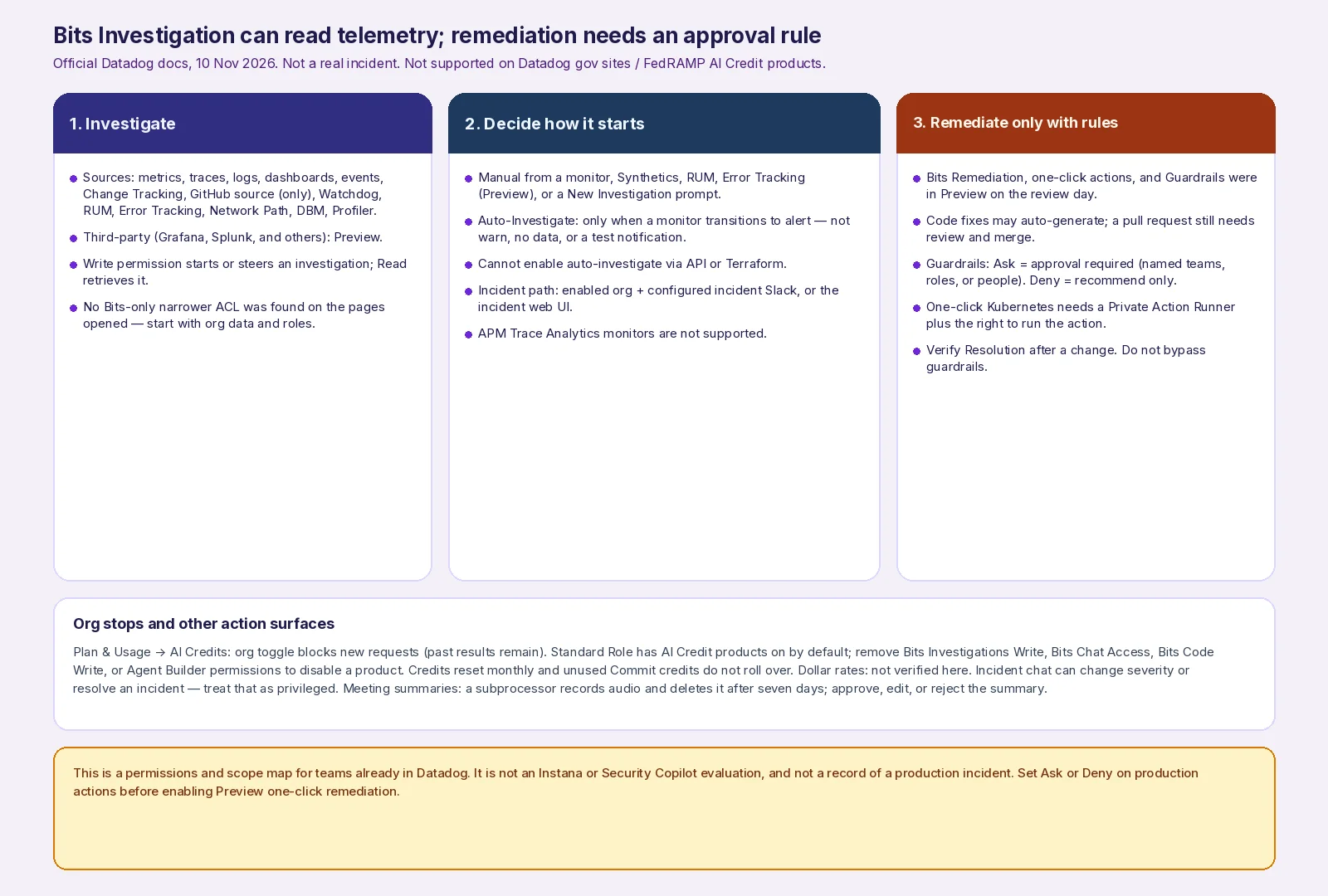
AINav original diagram based on official docs. Sources: Bits AI, Investigate Issues, Bits Remediation, Bits Guardrails, Infrastructure Actions, AI Credits, Incident AI. Not an official screenshot and not a record of a real incident.
Incident chat and meeting summaries also change the record
Incident AI can post a proactive summary when you join a connected incident Slack channel (visible only to you), and a final summary when the incident is resolved (visible to the channel). Official example prompts also let you ask @Datadog to declare an incident, change severity, mark it stable, or resolve it. If chat can change incident state, treat that as an action surface and limit who can use it.
Meeting summaries, where the site supports them, can summarize incident meetings in Zoom, Google Meet, and Microsoft Teams. When they are enabled, the docs state that a Datadog subprocessor records and transcribes meeting audio, then automatically deletes all data after a seven-day retention period. Summaries are off by default for private incidents. A Datadog Transcriber may need to be admitted from a waiting room. After a summary is posted, a person can approve, edit, or reject it; Datadog records who approved or edited. An edited summary cannot later be approved; rejection cannot be undone. Re-inviting the transcriber requires permission to edit the incident and, for seat-based billing, an Incident Management or Incident Response seat.
A scoping order that stays inside official controls
- Confirm you are not on a gov/FedRAMP site where these products are unsupported.
- Decide which Bits products are in scope. For incident investigation, you may leave Agent Builder and Security Analyst off.
- Review who has Bits Investigations Write versus Read, Bits Chat Access, and Code or Agent Builder rights.
- Use the org-level AI Credits toggle and any credit limits as a hard stop, not only as a bill.
- Enable Auto-Investigate only on monitors you have reviewed; it fires on alert transitions, not on warn or no data.
- Treat automatic suggested code fixes and Bits Code auto-push (automatic PR opening) as separate settings. Keep auto-push and Preview one-click infrastructure actions off, or tightly scoped, until Guardrails exist that cover both the action and the resource: Deny where Bits must not act; Ask, with named approvers, wherever an action can change production.
- If meeting summaries are on, record the subprocessor and seven-day retention in your data map, and decide who may approve or reject them.
What this article did not verify
No production or sandbox incident was run. AI Credit list prices, default role mappings beyond the Standard Role note, and whether Bits is limited to a clicker’s own telemetry ACLs were not verified. Preview features may change or require access Datadog has not granted. No bypass of role permissions is described.