workflows
Airtable AI: review field agent or generated formula output before you share the base
Field AI is documented on paid plans; that is not the same sentence as every plan including some AI credits. Compare generated Field agent or formula output with source fields and a known result before you share the base.
A generated field value can look finished long before anyone has checked it. Airtable AI can fill a Field agent from other fields, the web, or a document, and it can draft a formula from a plain-language prompt. Official help also says workspace-level AI has to be enabled, and that those runs consume AI credits. Before you share the base, compare the output with the source fields and with a result you already know.
Official Airtable help on fields, AI billing, and credit types, plus the public pricing page, were reviewed on November 28, 2026 (Asia/Shanghai). We did not sign in to a paid workspace, create a Field agent, or generate a live formula. This article does not treat a generated enrichment, currency amount, or percentage as a verified fact.
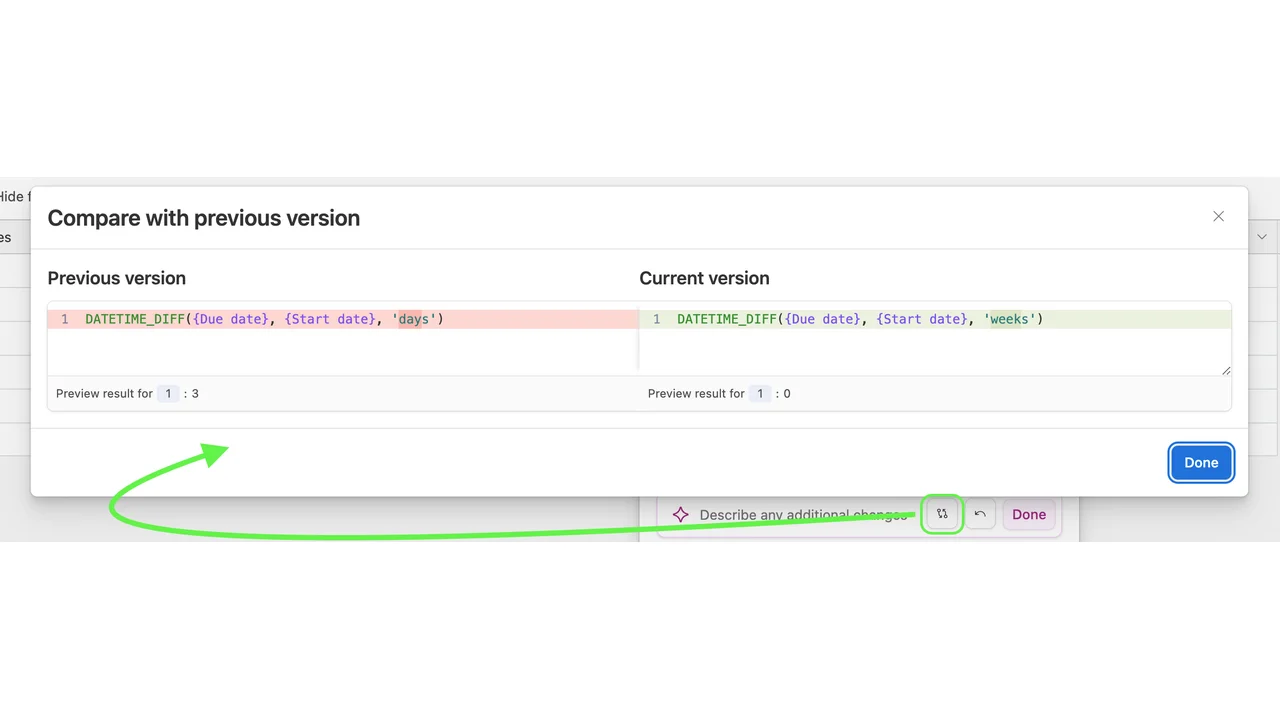
Cover source: Airtable's official Help Center article Getting started with the Airtable formula field, acquired November 28, 2026 (Asia/Shanghai). The unaltered official screenshot, filed as ai_compare_formulas_2024.png, shows a Compare with previous version dialog for a generated formula: a previous DATETIME_DIFF({Due date}, {Start date}, 'days') next to a current version that uses 'weeks', preview results of 3 and 0, and official callouts pointing at the compare-versions control above Describe any additional changes. The field names, formula text, and preview numbers are Airtable's official documentation example, not a base we opened and not a formula we generated. The official green arrow and box are part of the vendor screenshot. No interface values were rewritten. Underlying vendor copyright is retained; no blanket reuse licence was established.
Field agents and Generate formula are different jobs
Official help, Using Airtable AI in fields, says that in Airtable, most AI-enabled fields are called Field agents. Field agents can retrieve, analyze, or generate data at the cell level. They can pull in information from the web and analyze documents, and they can be added manually or built by Omni.
A formula field is a different path. The same article says that when you configure a formula field, you can click Generate formula in the field editor, or ask Omni to help. Official formula-field help walks through that prompt, the generate step, and the controls for comparing versions. A generated formula is still a formula: it should recompute from the fields it names. A Field agent run is not that kind of deterministic calculation. Do not review them as if they were the same output.
This is also not a reskin of a spreadsheet-formula check in another product, and it is not a buy-before-commit comparison of spreadsheet copilots. If you are still choosing among those tools, see How to Evaluate AI Spreadsheet Copilots Before You Commit. This article stays on Field agents, Generate formula, workspace AI, permissions, and credits, and on the review you do before a base is shared.
"All paid plans" for Field AI is not the same sentence as "every plan includes AI credits"
The fields article lists plan availability for AI in fields as All paid plans. It also says AI credits, and enabling AI at the workspace level, are required to use AI in fields.
The billing article, Airtable AI billing, reviewed the same day, uses a different sentence: all plan types, with billing that varies by plan, and "All Airtable plans include AI functionality with a set number of free AI credits each month." On November 28, 2026 (Asia/Shanghai), that article listed monthly included credits as 500 per user with Editor permission and above on Free plans; 15,000 per billable collaborator on Team; 20,000 per paid user on self-serve Business; 20,000 per paid user at list price on sales-led Business; 25,000 per paid user at list price on Enterprise Scale; and 1,000 per paid user at list price for portal users. Those figures were live on that billing page today. They are not an evergreen price list. Re-check the billing article before you plan around a number.
The two statements must stay apart. Credits on a Free plan do not mean Free can definitely create Field agents. The fields article's plan line is still All paid plans. Official billing help also warns that including AI functionality is not the same as having it turned on: if Airtable AI settings for a workspace are greyed out, AI is blocked by the plan or by an admin restriction.
Prefer the billing help article, not the marketing pricing page, for credit counts. The public pricing page loaded on the same day, but it did not clearly surface those monthly AI-credit numbers in the static text we fetched.
Check who can configure a Field agent, and who can only click Generate
Permissions are not uniform. Official fields help says Owners and Creators can ask Omni to build Field agents or create them manually, and can configure Field agent settings and generate content. Editors can click Generate in a Field agent to generate content as an output. If you only have Editor access, you may be able to run an agent someone else configured without being able to change its instructions. That is a reason to know who set the prompt, not a reason to skip the review.
Official formula-field help, which covers Generate formula, lists a broader plan line for the formula field itself—All plan types—and still requires AI to be enabled before you can use the generate control. Creating a formula field and being allowed to let AI draft the formula are not automatically the same permission set as creating a Field agent. Check both.
Enable AI in the workspace, then watch AI credits—not referral credits
Official help says AI in fields needs workspace-level AI to be on, and that runs consume AI credits. The billing article describes how to turn Airtable AI on or off in workspace settings and, where applicable, in the admin panel. If the controls are greyed out, stop and check the plan or the admin restriction rather than assuming a credit balance will turn them on.
Keep the two credit types straight. Official help, Airtable credits overview, distinguishes referral Airtable credits, which can be applied to a workspace invoice, from AI credits, which are consumed by AI-powered features such as Field agents. You cannot treat a referral balance as an AI-credit allotment.
The billing article also notes that included AI credits are pooled for shared use, that they expire at the end of the period described there, and that additional packs can be purchased on documented self-serve paths—or must be confirmed with a sales representative on sales-led plans. This article does not copy those pack prices as a standing rate card. Building with Omni is documented separately as free of AI credits for some build actions; generating Field agent output and many other AI actions still consume credits. Read the billing tables for the action you are about to run.
Compare the output with source fields and a known result before you share
For a generated formula, official help says you enter a plain-language prompt, click Generate, then describe additional changes if needed. You can use the back and forward controls to move between versions, and you can click the two-arrow control to compare versions. The cover image is that official compare dialog: one formula counted in days, the next in weeks, with different preview results. Read the formula. Check that the field names match the table. Check the formatting. Then confirm the preview, or a record you already know the answer for, before you click Create field or Save. A prompt that sounds right is not a verified calculation.
For a Field agent, official help describes custom instructions, configuration, and a Generate action that produces cell-level output. That output might be text, a select option, a number, a currency, or a percent, and it may draw on other fields, the web, or a document. Treat it as a draft. Compare it with the source fields on the same record. If the agent used the web or a file, open that source. If the value is a number or a percentage, check it against a record whose result you already know. Do not share a base on the assumption that a generated enrichment or a generated amount is already verified.
When you are ready to share, share a base whose generated fields you have inspected, not one whose prompts merely look complete.
A short checklist before you share the base
Before other people rely on generated field output:
- Workspace AI is actually enabled. Greyed-out settings are a stop, not a maybe.
- You know whether the field is a Field agent or a generated formula, and you have reviewed it on those terms.
- You have not used "Free includes some AI credits" as proof that Field agents are available. Field AI is documented as a paid-plan feature.
- You have not confused referral Airtable credits with AI credits, and you have re-checked today's billing article for included credit counts rather than reusing a saved number.
- For a generated formula, you have compared versions where needed, read the formula, and checked it against a known result.
- For a Field agent, you have compared the output with source fields and any cited web or document source, and you have not treated a generated amount or enrichment as a verified fact.
The safe endpoint is output you have checked against sources you can see, in a workspace where AI is enabled on a plan that actually includes the feature. A polished generated cell is not that review.