guides
Isaac Sim will not start? Check hardware before your first scene
Separate RTX compatibility, VRAM, drivers, assets and remote viewing. A documentation-based Isaac Sim startup path, plus internal-use and redistribution boundaries.
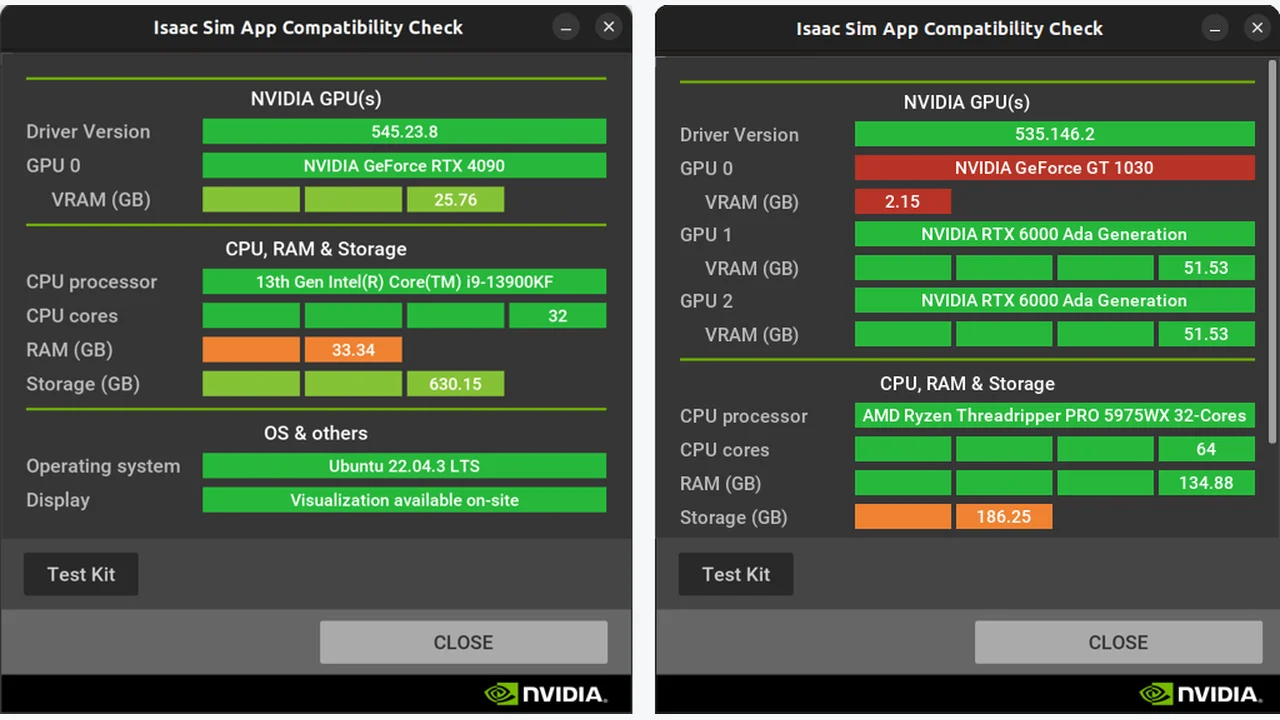
A powerful GPU server is not automatically a compatible robotics-simulation workstation. NVIDIA's current Isaac Sim requirements explicitly rule out GPUs without RT Cores, including A100 and H100. Buying more system RAM or selecting a large inference instance does not resolve that mismatch.
This guide is a first-scene troubleshooting path for NVIDIA Isaac Sim: identify the release, check the machine, distinguish local rendering from a remote viewer, and stop before importing proprietary assets into an unreviewed setup. Official documentation was reviewed November 25, 2026. No simulator was installed, scene rendered or robot policy trained for this article.
Cover source: NVIDIA’s official Compatibility Checker documentation, retrieved November 25, 2026 (Asia/Shanghai). The example compares GPU, VRAM, CPU, RAM and storage checks. Its displayed driver numbers are historical illustration values, not the current driver recommendations or results from our machine.
Fix the version question before troubleshooting the machine
The current download page lists Isaac Sim 6.2.0, released in October 2026. Record the release you intend to run and read the corresponding requirements. A search result or a video from an earlier release may point to a different installer, driver expectation or integration pairing.
The download page warns that Omniverse Launcher, Nucleus Workstation and Nucleus Cache are deprecated and no longer available starting October 1, 2025. If an old tutorial begins by installing those components, do not treat a missing launcher download as proof that Isaac Sim itself has disappeared. Follow the current workstation or container instructions instead.
Also keep the simulator separate from a streaming client. The download page lists a WebRTC Streaming Client, including macOS options, for connecting to a headless Isaac Sim instance. A macOS viewer download is not evidence that the simulator runs locally on an ordinary Mac. Identify where the simulation process and its required GPU will actually run.
Use one short environment record: simulator version, installation method, operating system, GPU model, VRAM, driver version and whether the display is local or streamed. This is much more useful for a support request than “my AI computer is fast.”
Compare the actual hardware with the current minimum
The requirements page currently lists these x86_64 minimums:
| Component | Published minimum or restriction |
|---|---|
| Operating system | Ubuntu 22.04/24.04 or Windows 11; Ubuntu 22.04 support is deprecated |
| CPU | Intel Core i7, seventh generation, or AMD Ryzen 5; four cores |
| System memory | 32 GB RAM |
| Storage | 50 GB SSD |
| GPU | GeForce RTX 4080 |
| GPU memory | 16 GB VRAM |
| Container | Supported on Linux only |
The page specifically says GPUs without RT Cores, including A100 and H100, are unsupported. That is the central trap for teams starting from a machine chosen for model training or inference rather than rendering. “NVIDIA GPU” is not a sufficiently specific requirement.
Do not merge RAM and VRAM into a single memory number. They are separate resources. The requirements warn that advanced usage needs more memory, that Isaac Lab training adds requirements, and that complex scenes and many sensors can exceed smaller configurations. Meeting the table's minimum is not a guarantee that an arbitrarily large warehouse scene will fit.
Driver versions also change. At this review the page lists Linux 595.58.03 and Windows 595.97 as tested versions and points to technical requirements for recommendations. Check the release-specific page before changing a driver; do not copy numbers from the illustrative checker image. This article does not recommend blindly upgrading a shared production machine.
Use the checker to isolate the failing layer
The workstation installation documentation describes the Compatibility Checker and its checks for driver, RTX-capable GPU, VRAM, CPU, core count, RAM, available storage, operating system and display.
Its colors have documented meanings: green is excellent, light green good, orange enough with more recommended, and red insufficient or unsupported. An orange resource is not identical to an unsupported GPU. Record the exact row rather than reporting that the whole screen “has a warning.”
The documented Test Kit button launches a minimal headless Kit application and reports whether it executes successfully. That is a narrower test than loading your full scene. If the minimal application fails, investigate the base environment before changing robot assets, physics parameters or learning code. If it succeeds, it still does not certify every extension or workload.
Follow your organization's change process when installing software or altering drivers. Keep a copy of relevant logs with private paths or identifiers removed before sharing externally. A checker screenshot may reveal machine details; do not publish it automatically as part of asking for help.
A blank scene and a missing asset are not the same fault
The requirements note that an internet connection is needed for default online assets and some extensions, and name the default asset host. A machine may satisfy its hardware checks but still fail to reach assets because of a firewall or network policy. Conversely, a successful asset download does not prove the renderer is supported.
The workstation documentation says the first run takes time to warm the shader cache. That explains why “the first launch is slower” is not by itself a diagnosis of permanent failure; it is not permission to wait indefinitely on a process that is clearly failing. Inspect progress and logs rather than assigning an invented normal startup duration.
For an offline environment, the license FAQ points to downloadable asset packs and offline setup instructions. The download page describes the current complete assets as a split archive: all five parts belong to one ZIP64 archive, not five independently extractable packages. Verify the official manifest and matching release before assuming a partial download is a valid asset installation.
A cautious troubleshooting order is: supported machine, minimal Kit test, minimal approved scene, then required assets and extensions. Avoid beginning with a complex proprietary CAD import, since that combines hardware, network, format and confidentiality questions in one failure.
Know where Isaac Lab and your data enter the picture
NVIDIA's product overview describes Isaac Sim as a robotics simulation framework and Isaac Lab as a framework for robot learning built on it. Importing a robot, configuring physics and sensors, and training a policy are separate stages. Simulator startup is not evidence that training will fit within the same memory budget.
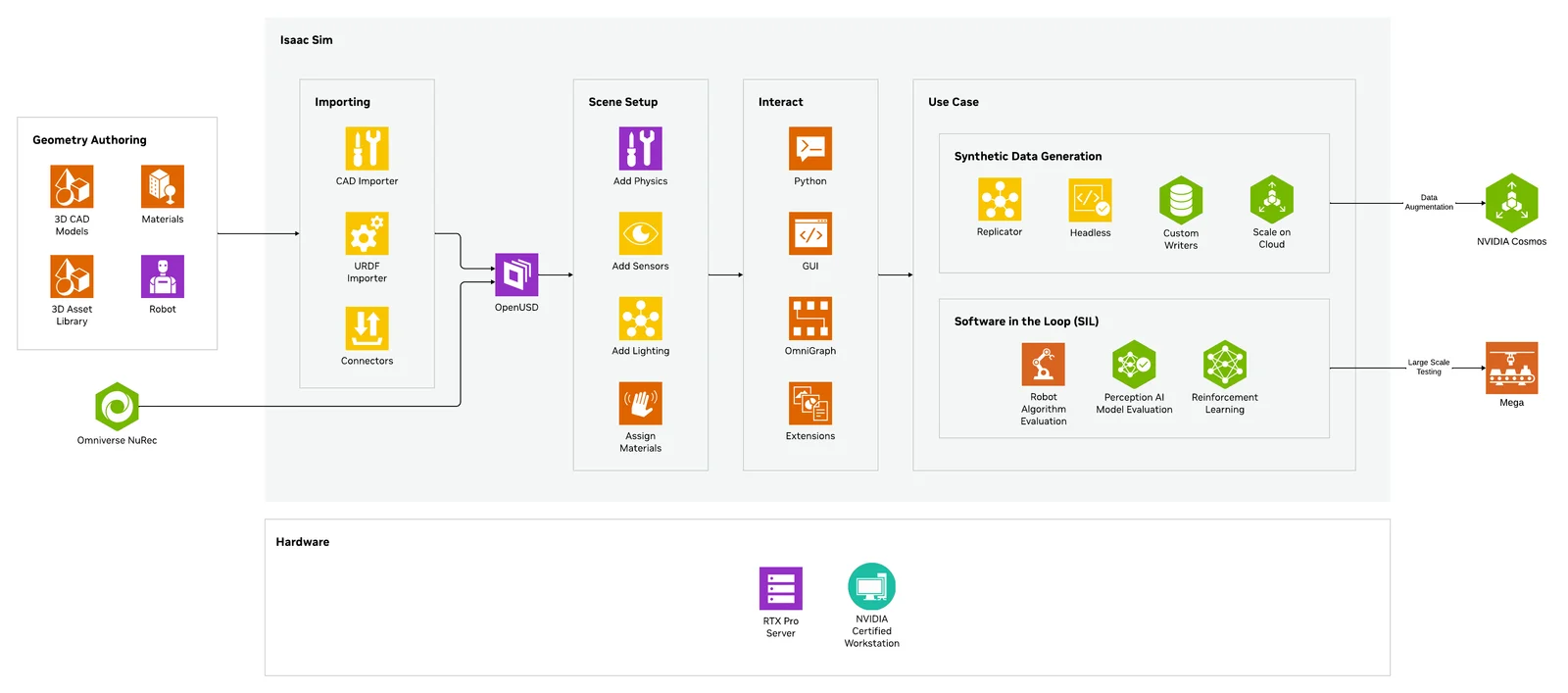
Source: NVIDIA Isaac Sim product overview, retrieved November 25, 2026 (Asia/Shanghai). This official architecture distinguishes importing, scene setup and downstream uses; it is not a measured performance chart or an AINav deployment.
The diagram is useful for isolating ownership. A problem importing a robot description belongs to a different stage from a failure to render a sensor or run a learning workload. Keep those stages separate when writing an issue or choosing a minimal reproduction.
This is also not the same task as generating a decorative 3D asset from a prompt. Our CAD and AEC assistant guide covers another part of the engineering workflow. A model that looks convincing still needs appropriate geometry, physical parameters and rights before it belongs in a simulation.
Do not infer a blanket privacy guarantee from local installation. Online asset access, remote machines and any additional services have their own data paths. Review where proprietary models, logs and captured sensor data are stored and who can access them. This review has not established universal telemetry or retention behavior across all deployment choices.
Separate free internal development from redistribution
The official license FAQ says internal R&D and development use is free, with no internal per-user limit. It also distinguishes Apache 2.0 source code from additional components such as Omniverse Kit, models and textures, which have separate terms.
The FAQ says redistribution with Omniverse Kit, or delivering it as a service to third parties, requires NVIDIA AI Enterprise licensing. It distinguishes that from running simulations internally and selling only outputs, for which it says an AI Enterprise license is not required. Those are materially different delivery models; “open source” is not a blanket answer for a turnkey client installation.
This is a summary of the published FAQ, not legal advice or a quote for an enterprise license. Infrastructure costs remain even when internal software use is free. Resolve your actual delivery model and component terms before promising a customer a hosted or installed service.
A good first-scene result is modest: the chosen release runs on a supported machine, its minimal checks pass, the asset path is understood and sensitive inputs remain controlled. That is a sound base for simulation—not a claim that robot behavior is validated for the real world.