workflows
Retool AI: preview generated functions in a non-production environment before you touch production data
Switch to a configured non-production environment and read generated function code before production data is in play. As of 16 November 2026, new cloud apps default to off for preview function approval; check the Data tab.
A generated function can reach a database as soon as it runs. If the app is pointed at production, that run is not a rehearsal. Official Retool documentation describes resource environments so you can test against staging or another non-production configuration, and it describes a Function playground where you can inspect the code a function will run. This workflow is for teams that already use Retool AI to build internal apps, and that need an official way to preview generated functions before they touch production data.
Official Retool documentation and the public pricing page were reviewed on November 27, 2026 (Asia/Shanghai). We did not sign in to a Retool organization, connect a production database, or execute a generated query. This article does not teach a permission bypass, and it does not claim a measured security guarantee. Use only synthetic or other non-production data for any demonstration.
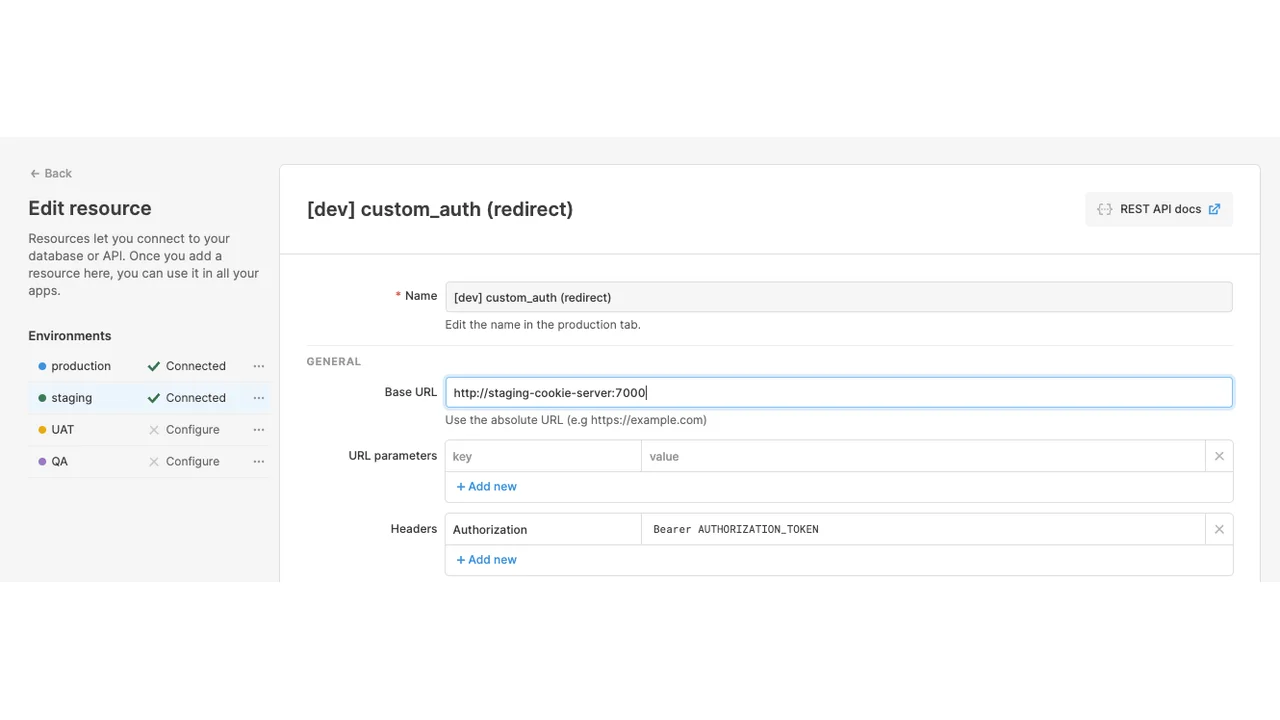
Cover source: Retool's official documentation Configure resource environments, acquired November 27, 2026 (Asia/Shanghai). The unaltered official screenshot, captioned "Configuring environment resources," shows an Edit resource view for a sample REST resource with environment tabs production, staging (selected, Connected), UAT, and QA, and a staging Base URL of the official documentation example host staging-cookie-server on port 7000. The resource name, URLs, and placeholder header value are Retool's official documentation example, not a resource we connected and not a query we ran. No interface values were rewritten. Underlying vendor copyright is retained; no blanket reuse licence was established.
Treat a generated run as a production risk until the environment says otherwise
Official documentation, Work with data and functions in apps, defines a function as code in your app that accesses a resource. While an agent is building, you may be asked to approve functions before they run, and you can click See details to open the Function playground. That approval is useful only when it is actually on, and only when the selected environment is one you are willing to query.
If you are still comparing internal-app builders before a pilot, see How to Evaluate AI Low-Code Internal App Builders Before You Pilot. This article is not that evaluation. It is the preview and environment check you do before a generated function is allowed near production data.
Use official resource environments, which are a paid-plan feature
Official environment documentation says all Retool organizations on paid plans have production and staging resource environments. Production is the default resource environment for Retool apps and cannot be removed or renamed. Staging lets you test apps without impacting production. Administrators can create additional environments. Organizations on a Business or an Enterprise plan can configure per-environment resource permissions, for example allowing access to staging data but preventing access to production.
When you configure a resource, you set the environments it is accessible in. Official help says each resource must be configured for the organization's default resource environment, and that you cannot switch to an environment while editing an app if a resource the app uses is not configured there. The cover image is that configuration view: one resource, several environments, different credentials.
Re-check retool.com/pricing for current plan names and rates. This article does not copy a directory price, and it does not treat a public plan tile as the only basis for whether environments or functions are available. Official docs, not a price card, are the source for the statement that resource environments are available on paid plans.
Switch the environment in the builder, then preview there
The mechanism for switching environments is different in the app builder and in a published app.
While you are editing an app, official data documentation says you use the environment selector in the status bar. The app preview reloads on each switch to present the new data. A function runs only if its resources are configured in the selected environment and you have permission to run functions in that environment. The environments guide repeats this: the preview restarts on the same page once the switch is confirmed, and you cannot switch to an environment where a required resource is not configured.
Point the builder at staging, or at another configured non-production environment, before you let a generated function run. If a resource requires authentication, official help says users must re-authenticate the first time they switch to a different resource environment.
Open the Function playground and read the code that will run
Inside the Function playground, official help says you can view and edit the parameters, run the function, and view run history. You can also view the exact code that the function runs against the resource, or visualize the control flow as connected blocks. Read that code. A prompt that sounds careful is not a substitute for seeing whether the function will SELECT, UPDATE, or call an endpoint you did not intend.
If you cancel a function run, official help says the agent asks what can be done to improve the function. That follow-up is still a drafting step. It is not an approval to run the same function in production.
Official function limits (input size, timeouts, memory, and rate limits) are documented on the same page. They are capacity limits, not a safety review. This article does not treat them as a guarantee that a generated function is safe to run against production data.
Do not assume a new app will prompt you to approve functions
This default changed. Official changelog dated November 16, 2026, Runtime function approval off by default for new apps, states that for all new apps, the Ask to approve functions when previewing app setting is now off by default. That means you are not prompted to manually approve function runs while previewing the app, and function approvals are not checked while publishing the app. The change applies to new apps created in the app builder, the CLI, or the MCP on cloud instances. Official help says you can re-enable the setting at any time from the Data tab of the app builder.
Do not assume that "the app uses AI, so preview will ask first." For a new cloud app created on or after that change, the official default is off. Open the Data tab and check the setting. Re-enable it if your team wants preview-time approval. This change is documented for new apps. Official text does not say that every existing app was switched off, and this article does not claim that.
Even when approval prompts are on, they are not a reason to preview against production. Check the environment selector first.
Published apps open in production unless you change the query parameter
Official documentation says published apps open in production by default. To open an app in another environment, add the _environment URL query parameter, such as ?_environment=staging. Published apps do not include a visual environment toggle. Official help notes that you can optionally design your own control, such as a picker or a banner, using the useEnvironment hook, and that switching environments in a published app restarts the app and resets its state. Users need Use access to a resource in an environment to run functions against it there.
The default resource environment for public links is production. If you share a published app without an environment parameter, official help says it runs in production. Do not use a production URL as the place where you first inspect a generated function.
A short checklist before production data is in play
Before a generated function is allowed to run against production:
- The resource has a configured non-production environment, and the builder status bar is set to that environment.
- You have opened the Function playground and read the code that will run, including the resource it will call.
- You have checked the Data tab for Ask to approve functions when previewing app, especially on a new cloud app, and you have re-enabled it if your process depends on that prompt.
- Any published-app preview uses an explicit
?_environment=...parameter, not the default production URL. - The data in that environment is synthetic or otherwise non-production. This article does not walk through connecting a real production secret in order to "test."
The safe endpoint is a non-production environment you selected on purpose, function code you have read, and an approval setting you have checked rather than assumed. A generated function that ran because a new app no longer prompted you is not that review.