guides
Seeing AI: choose Read or Describe for everyday documents
Choose text reading or visual description deliberately. A practical Seeing AI document workflow with capture checks, device caveats and privacy boundaries.
A letter on the kitchen table, a page on a noticeboard and a photo sent in a message are three different reading problems. Asking for a description of each can produce useful context, but context is not the same as hearing every line in order. For blind and low-vision readers, choosing the right task matters more than asking the AI a longer question.
Seeing AI, from Microsoft, is a free app designed with and for the blind and low-vision community. Its current official descriptions distinguish Read, Describe and other task-specific capabilities. This guide turns those distinctions into a cautious everyday document workflow. It is a documentation-based guide, reviewed November 25, 2026, not an accessibility usability test or a claim about recognition accuracy on a particular phone.
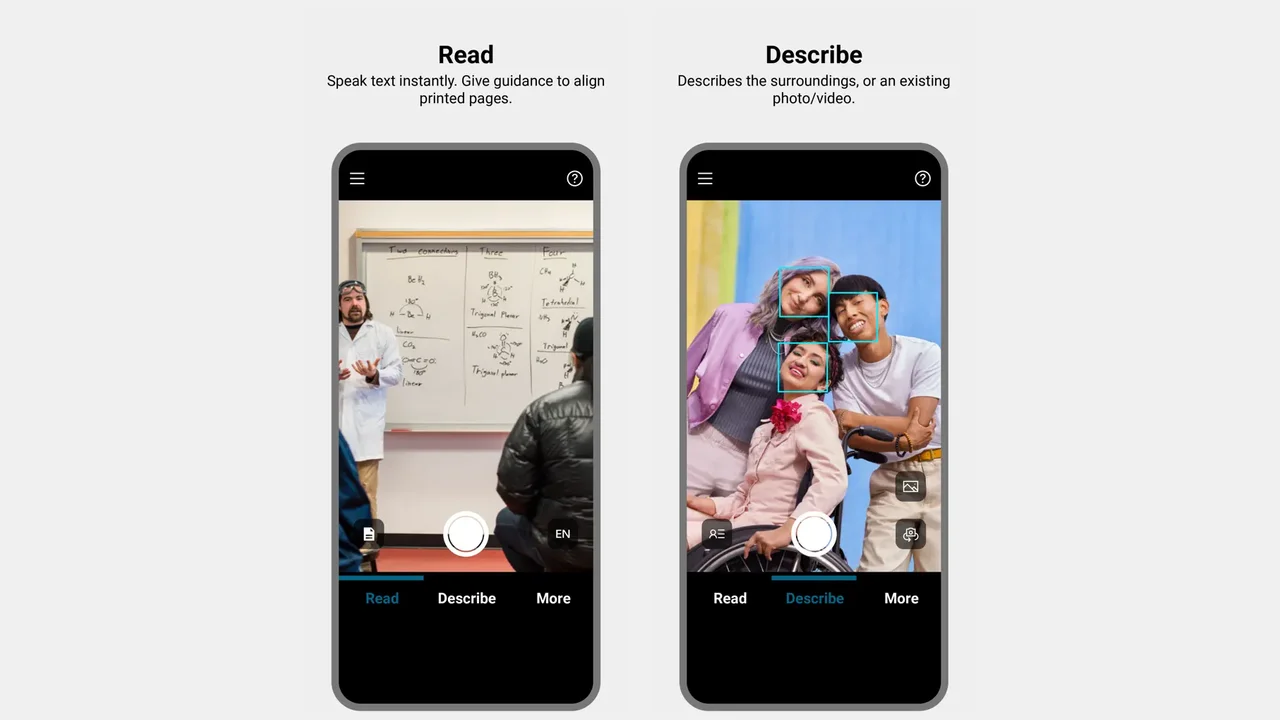
Cover: Microsoft’s developer-supplied App Store screenshots, retrieved November 25, 2026 (Asia/Shanghai). The unaltered Read and Describe examples are placed side by side: text reading and visual description are different tasks. They are official demonstrations, not AINav captures or accuracy tests.
Decide what you need to know before pointing the camera
For a short printed label, the immediate question may be “What does this say?” For a letter, it may be “Read the whole page, including the deadline.” For a shared photo, it may be “What is visible, and where is the relevant object?” Those are different outputs. A concise description can omit a qualification that a line-by-line reading would expose.
Microsoft's official site describes reading, photo description and product identification among the app's daily tasks. The Microsoft-published App Store listing describes Read as speaking text that appears before the camera, with document-alignment guidance for capturing a printed page. Describe is presented as taking a photo for a richer description and asking follow-up questions.
Use that distinction deliberately. Start with Read when the words themselves are the evidence. Use Describe when you need visual context or want to ask a focused question about an image. Neither choice removes the need to confirm a consequential fact through an authoritative source.
| Your immediate job | Sensible starting point | What still needs checking |
|---|---|---|
| Identify an ordinary piece of printed mail | Read | Whether all pages and the reverse side were included |
| Hear the wording of a notice | Read with page capture guidance | Small print, dates, negations and missing edges |
| Understand a photo someone shared | Describe or the documented sharing route | Whether a generated description inferred something not visible |
| Identify packaged goods | Products, where available | Exact variant, package text and safety-critical details |
These are task choices, not a promise that every feature exists identically on every device, platform or app version.
A page-reading workflow with a clear human checkpoint
First prepare a stable, non-sensitive example. Use a flat page, reasonable lighting and a background that makes its edges distinguishable. Those are practical capture suggestions, not measured minimum lighting requirements. Keep the original within reach so you can recapture it rather than relying on a single result.
Open Read and use the app's available alignment feedback to frame the page. The listing describes audio cues for document alignment; listen for that guidance rather than assuming that holding a phone roughly above the paper captures every corner. With a multipage letter, treat each page as a separate capture task and preserve the order yourself.
After recognition, listen for the title, sender, body and ending. If the reading jumps abruptly, stops mid-sentence or appears to omit a margin, recapture before asking a model to explain the text. A follow-up answer may sound coherent even when the capture was incomplete.
Then identify the facts that would change an action: the response date, the amount, an address or a qualification such as “not required.” Check those against the original through another reliable accessible route when the consequence matters. A verified accessible digital copy from the sender may be a better endpoint than repeated camera recognition.
The output of this workflow is a usable reading plus a list of facts still requiring confirmation. It is not an authorization to pay a bill, take medicine, sign a form or send a reply. Keep recognition and action as separate decisions.
Shared photos need a different set of questions
The App Store description documents sharing media from other apps to Seeing AI and browsing photos. Availability and labels can vary; use the sharing options actually present on your device rather than following a screenshot as an exact menu map.
For a shared photo of an event poster, begin with the visible wording. Then ask a narrow question: what date appears, whether a location is printed, or whether the image includes another panel of text. If you ask only “What is this?”, a correct high-level description may still leave you without the booking details you need.
Keep a distinction between observation and interpretation. “There is a sign above the door” is different from “this is the entrance you should use.” A generated description should not become navigation guidance merely because it is fluent. Likewise, a photo description is not proof of a person's identity or emotional state.
If the photo contains someone else's private information, consider whether you have permission to process it. Do not expand a small reading task into uploading a whole photo library. Select the narrowest relevant image and use a less sensitive example while learning the interface.
Free does not answer the privacy question
The app is described as free on Microsoft's site and the store listing. That tells you about the app's price, not the complete data path of every feature. Mobile data costs and connectivity constraints can still matter. This article does not claim unlimited availability in every region or that every operation works offline.
The Apple listing includes an App Privacy section with developer-declared data categories, and notes that practices can vary with features and use. Store disclosures are useful starting points; they do not establish a feature-by-feature retention or processing map for a confidential document. Read the current linked privacy information and the app's own notices before submitting identity documents, financial records or private correspondence.
In particular, do not infer “no cloud upload” from the fact that the camera is on your phone. This review has not verified the processing location and retention terms of each current feature. If those details are essential, stop short of sensitive input until they are clear, or obtain an accessible original through a trusted channel.
Our Apple Intelligence capabilities and privacy guide covers a separate ecosystem. Seeing AI being available on an iPhone does not make it an Apple Intelligence feature or inherit another product's privacy architecture.
Device differences are part of the workflow
The iOS listing describes a World experience that requires a LiDAR-equipped device and iOS 14 or later. The listing’s separate installation-compatibility section currently requires iOS/iPadOS 15.0 or later, so the older “iOS 14+” feature wording is not the current installation floor. The LiDAR requirement belongs to that capability, not a blanket statement that Read requires LiDAR. Conversely, an iOS feature description should not be treated as proof of Android availability.
Before helping someone set up a repeatable routine, record the operating system, app version, available task labels and preferred screen-reader settings. Let the person who will use the app control the pace and decide whether the spoken feedback is useful. A helper seeing a recognizable image on screen is not evidence that the interaction is accessible for that person.
Begin with one task and one familiar object or document. Confirm how to repeat a capture, stop speech, move back to the source and recover from an unhelpful description. Avoid starting with a time-sensitive bill or an unfamiliar journey. Familiarity makes it easier to notice errors without inventing an accuracy percentage.
When to stop and choose another route
Stop camera-based interpretation when repeated captures disagree on a consequential number, when edges or pages cannot be captured reliably, or when privacy requirements are unresolved. Ask the source for accessible text, use an established assistance route, or have a trusted person verify the relevant detail with permission.
For medicine, traffic, emergencies and other safety-critical situations, do not rely on an AI reading or description as the sole authority. That is a conservative use recommendation, not a claim that this guide has certified the app for any safety task.
Seeing AI's value here is specific: it can provide another route into everyday visual information. A good routine preserves the user's control, distinguishes reading from description, and keeps uncertain recognition from silently turning into a high-stakes action.