workflows
SeekOut Inbound: approve the rubric and cited evidence before the next recruiting step
SeekOut Inbound is a paid add-on, not Sam AI Screening. Approve the required and preferred rubric, then open the citations, before anyone advances or contacts a candidate. Confirm Inbound pricing with SeekOut.
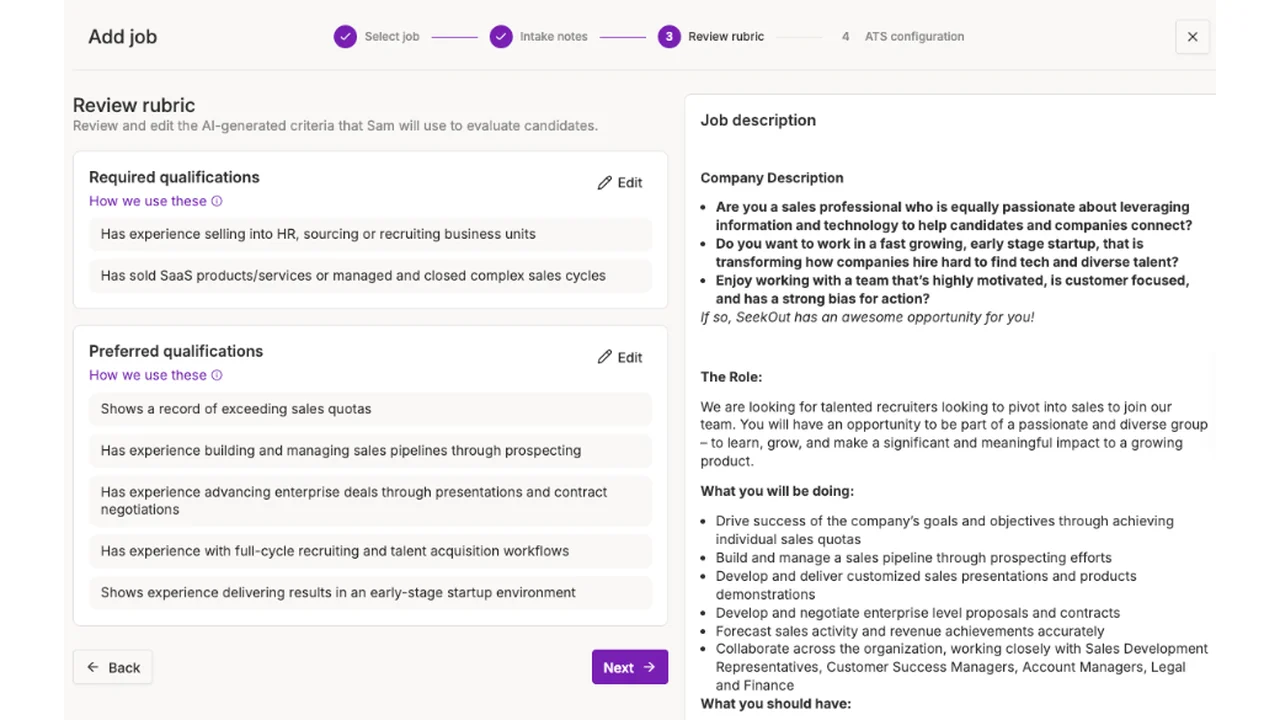
An inbound queue can look ranked and still be unready for outreach. Official SeekOut help for Sam | Inbound says every job starts with a rubric that your recruiting team reviews and approves, and that every score is backed by direct citations to the applicant's own materials so a recruiter can verify the evidence. This workflow is for recruiting teams that want to use SeekOut Inbound to evaluate applicants imported from an applicant tracking system (ATS), and that need a human review of the rubric and the citations before anyone advances or contacts a candidate.
Official SeekOut documentation and public pricing pages were reviewed on November 27, 2026 (Asia/Shanghai). We did not sign in to SeekOut, connect an ATS, import applicants, search for real people, or send outreach. Any example role or applicant mentioned below is fictional, or is an unaltered official help example, and is not a real candidate. This article makes no claim about fairness, accuracy, or hiring outcomes.
Cover source: SeekOut's official help article Sam | Inbound, acquired November 27, 2026 (Asia/Shanghai). The unaltered official screenshot shows step 3 of Add job, Review rubric, with Required qualifications and Preferred qualifications on the left and a Job description on the right. The sample role and criteria (including recruiting and sales qualifications, and the sentence "If so, SeekOut has an awesome opportunity for you!") are SeekOut's official documentation example, not a requisition we imported and not a live evaluation we ran. No interface values were rewritten. Underlying vendor copyright is retained; no blanket reuse licence was established.
Approve the rubric and the citations before the next recruiting step
Inbound can import jobs and applicants from your ATS and place them in a prioritized review queue. Official help describes that queue as a way to process an inbound talent pool. A ranked list is still not a decision to email, reject, or advance someone. Until a person has approved the rubric for that job and opened the cited evidence behind a score, the next recruiting step should wait.
This article is not a buying-time shortlist of recruiting platforms. If you are still choosing tools to pilot, see How to Evaluate AI Recruiting Tools Before You Pilot. The job here is narrower: review Inbound's rubric and citations before you act on a queue.
Inbound is not Sam AI Screening
Official help titles this product Sam | Inbound. It imports jobs and applicants from your ATS and evaluates them against a rubric. Sam | AI Screening is a different SeekOut product: an AI interview or written screening flow. Official Inbound help mentions Send AI screen only as an optional action if your organization is already using Sam | AI Screening. That action is not part of this workflow, and this article does not treat interview screening as the same capability as Inbound evaluation.
When Inbound is enabled, official help says you access it via Sam in the left-side navigation. The Jobs tab lists requisitions from your ATS. You can select a job to review applicants, or add a job through the four setup steps below.
Confirm the add-on, the ATS, and the price with SeekOut
A note at the top of the official Inbound article is unambiguous: Inbound is an add-on available for purchase and is not included in SeekOut Recruit by default. Inbound requires a connection to a supported ATS. If you want to add it, official help says to reach out to your Customer Success Manager, who can provide pricing details, confirm that your ATS is supported, and help you get set up. A later FAQ on the same page says many applicant tracking systems have an Inbound integration, and that you should ask your SeekOut contact whether your ATS and CRM vendors are compatible. This article does not certify a specific ATS.
Public prices on seekout.com/pricing are not Inbound prices. On November 27, 2026 (Asia/Shanghai), that page listed a 14-day free trial of SeekOut Sourcing Core (Recruit Core), and it listed Sourcing Core at $149 per month when billed annually ($1,788 per year) or $179 per month when billed monthly. The free-trial page describes that trial as access to SeekOut Sourcing and SeekOut MCP, not as Inbound. A higher packaging on the pricing page, SeekOut Full Recruiting Funnel, mentions inbound evaluation and AI screening in its marketing description, but it does not publish a standalone Inbound add-on price. Do not treat Sourcing Core, the trial, or a directory figure as the price of Inbound. Confirm Inbound pricing with SeekOut or your CSM.
Add the job, then approve the rubric before anyone is scored for action
Official help says you click Add Job and follow four setup steps.
Step 1. Select Job. Import a job from your ATS by typing the job title or requisition ID.
Step 2. Intake notes. Provide additional context that will help evaluate candidates. Official help says these notes are used alongside the job description to generate a more accurate screening rubric, including hiring priorities or traits that matter but are not listed in the job description.
Step 3. Rubric validation. Review and edit the AI-generated criteria. Official help says every job starts with a rubric that your recruiting team reviews and approves. The rubric is a short list of required qualifications and preferred "differentiator" criteria for that role. In this step you can add or remove qualifications from either the required or the preferred section. The job description is shown on the right for reference. Click Next only after that review.
Step 4. ATS Configuration. Select the application stage or stages you want to review. Official help says all candidates in the selected stage or stages will be evaluated against the rubric, that there will be a brief processing time that varies with the number of candidates, and that an estimated time of completion will be shown.
Do not skip step 3. A generated rubric that still lists a criterion you do not use, or that omits a must-have, will shape the queue.
Official help also describes how scoring works after the rubric is in place. Inbound reads each applicant's résumé and, when used, screening responses, and scores every criterion on two dimensions: how well the candidate's experience matches the criterion, and how strong the supporting evidence is. Official help says a passing mention of a skill will score lower than a detailed, concrete example with real outcomes, and that every score is backed by direct citations to the candidate's own materials. A recruiter can see why a candidate was prioritized and can verify the evidence.
Open the cited evidence, then read the queue in the official order
Once the job is open, official help says you land on the Unreviewed queue. Candidates in your designated new-applicant stage or stages appear there. Anyone you have actioned moves to Reviewed. Other candidates, such as people who were rejected or moved in the ATS, appear under All Candidates. Official help says the list updates as you change filters, and that ATS data is updated in Inbound in real time.
The review queue is ordered from the rubric scores. Official help says candidates are ranked first by how many of the required qualifications they meet, and then by how many preferred qualifications they match. Between candidates with similar qualifications, the one whose experience provides stronger evidence ranks higher. A qualification counts as met only when it is fully satisfied and supported by cited evidence. A claim with nothing behind it does not move a candidate up the list.
When you open a candidate, official help says you will see required and preferred qualifications marked as meeting the criterion, partially meeting it, or not meeting it, with a source reference. If you select Sources, you see the referenced section of the résumé highlighted, plus a brief summary. Open those sources. A color mark in the list is not a substitute for reading the citation.
Official help also describes a Profile check, a scan of the résumé and, if provided, a LinkedIn profile, covering career history, experience claims, résumé text, applicant identity, current role, location, and education. It can flag items that need review or need clarification. That check is another official surface to read; it is not a finding this article verified, and it is not a fairness or accuracy claim.
Visibility follows ATS access: if you can see the job in your ATS, official help says you will see it in Inbound, and Inbound Admins see all requisitions.
Let a person decide the next step, and know what a rubric edit will not redo
Actions official help lists include Move Stage (reflected in the ATS within 15 minutes), Reject in ATS, Add tag, and Mark reviewed in Sam, which moves a candidate from Unreviewed to Reviewed without changing ATS status, with the options Mark Advanced or Mark Rejected. Available actions depend on your ATS. Send AI screen remains a different product, as noted above. None of these actions should be taken until you have approved the rubric and opened the citations you are relying on.
You can edit the rubric later. Official help says rubric configuration is in Settings at the top right of the job, and that you can update required or preferred qualifications, click Next, and review matches. The same section includes this note, confirmed in the official article on this date: candidates who have already been reviewed will not be re-evaluated. If you tighten a required criterion after some applicants are already in Reviewed, do not assume those reviewed people were scored again.
Do not use this workflow to search, contact, or handle real candidate data in a demonstration. If you need an example, treat it as fictional. For instance, a fictional applicant "Alex Kim" (not a real person) should not be emailed, exported, or looked up just because a queue placed that name near the top of an official screenshot or a sample exercise.
The safe endpoint is an approved rubric, citations you have opened, and a next step a recruiter chose on purpose. A ranked inbound queue is not that decision.