workflows
Use Zoom Revenue Accelerator when your sales calls already live in Zoom
An official-path map for teams that already meet and record in Zoom: automatic cloud recording gates, analysis exclusions, ZRA-only roles, retention, processing region, and human review of CRM and email drafts. Recording-consent wording is Zoom’s product documentation, not legal advice. Gong is contrast-only, pointing to a published evaluation, and is not a Related tool on this package.
Use Zoom Revenue Accelerator when your sales calls already live in Zoom
If your team already meets, records, and follows up inside Zoom, a separate conversation-intelligence platform is not the first question. The first question is what Zoom Revenue Accelerator actually covers: which meetings it will record and analyze, who can see the results, where the files live, and which follow-up steps still need a person. This is not a sales-intelligence bake-off, and it does not re-score Gong. If you later need a pre-purchase comparison that already includes Gong, use How to evaluate AI sales intelligence tools before you buy. If the job is only meeting notes, not pipeline coaching, see Otter vs Fireflies vs Descript.
How this article was written
Zoom support articles and the Zoom Technical Library were opened first-hand on 10 November 2026 (Asia/Shanghai). No Zoom account was signed in, no call was joined or recorded, and no customer recording was played. The license-comparison article was readable from its official article body; it still does not state a public per-user dollar list price, so no dollar figure is taken from it. Recording-consent wording below is Zoom’s product documentation, not legal advice and not a statement of the law in every country.
What Zoom says the product does
Getting started with Zoom Revenue Accelerator describes it as a conversational-intelligence add-on for Zoom Meetings and Zoom Phone, in the Zoom web portal and the desktop and mobile apps. Official components include a Dashboard (performance over time, plus natural-language questions across conversations, deals, accounts, and pipeline); Conversations (playback, summary and Smart Chapters, speaker breakdown, metrics, transcript, callouts such as Good Questions or Next Steps, comments, and clips); Deals with CRM-connected pipeline; Coaching, including scorecards for users with Scorecard Management permission; and Analytics and Teams reporting.
How ZRA Works adds the processing model. After a meeting or phone call marked for analysis ends, Zoom transcribes it and then runs task-specific models on the transcript. Insights are drawn from utterances, sentences, noun chunks, pauses, and word choice. The same page states, on the review day, that Zoom Revenue Accelerator does not currently offer live analysis. It also cannot analyze locally recorded meetings — only cloud recordings.
Query tools officially include Conversation Explorer, which answers natural-language questions against one meeting transcript (admins can enable or disable it, and can decide which summary is sent back to the CRM), and Ask ZRA, which can query deals, accounts, analytics, and discovery data, with a documented limit of up to 60 conversations, deals, and/or accounts at once. After a call, the same page says Zoom Revenue Accelerator can auto-update the CRM and queue a follow-up email draft for review, so a representative can approve or edit the message. Treat that draft as something a person still signs off.
Turn it on only when the official prerequisites are true
The getting-started article lists these requirements:
- a Pro, Business, Enterprise, or Zoom Phone standalone account
- a licensed user with a Zoom Revenue Accelerator license
- calendar integration with Zoom
- cloud recording enabled
- audio transcription enabled
- Zoom desktop app 5.12.6 or higher (Windows, macOS, or Linux)
- Zoom mobile app 6.3.0 or higher (iOS or Android)
Licenses are officially named Essentials, Premium, and Elite. Comparing ZRA Essentials, Premium, and Elite licenses (official article body extracted on the review day; date modified 24 September 2026) still does not publish a per-user dollar list price. Confirm the current SKU and price in your Zoom billing console or with Zoom. Officially, Elite is Premium plus Engage and Forecast. Essentials includes no AI credits; Premium and Elite include 1,500 monthly credits per user. Ask ZRA consumes Zoom AI Credits on those licenses; credit dollar rates are pointed to Zoom’s pricing page or an account executive and are not stated here.
Access paths, once licensed, are documented as:
- Web: sign in to the Zoom web portal → Zoom Products icon → Revenue Accelerator (opens in a new tab)
- Desktop: the Revenue Accelerator item in the navigation bar, or More then Revenue Accelerator if it is not in the top menu
- Mobile: More → Revenue Accelerator, which opens Conversations
Administrator considerations lists six default roles, which can be customized, plus custom roles. They are scoped to Zoom Revenue Accelerator and do not override other Zoom roles: a person can be a Zoom account admin without ZRA admin rights, and the reverse. The defaults are ZRA Admin; Sales Supervisor (multiple teams or managers); Sales Manager (one team); Sales Representative; Collaborator (limited access, assignable to an unlimited number of Zoom users without ZRA licenses); and External ZRA Admin, for outside help during onboarding or a proof of concept. Licenses and permissions can be assigned manually, or through SSO or SCIM.
Recording, analysis, and notifications — product controls, not legal conclusions
Zoom’s getting-started article states that Zoom Revenue Accelerator can only analyze recorded meetings, “as recording consent must be provided by external participants,” and that admins can customize a Zoom Revenue Accelerator recording-consent disclaimer much like the standard recording disclaimer. That is Zoom’s product rule. It is not a global legal opinion. Notification wording, consent, and retention still need your own counsel and the rules that apply to your calls, including customer, employee, and cross-border requirements.
Managing conversation meeting recording access and disclaimers is the admin map. It requires a Pro, Business, or Enterprise account. Customizing recording consent further requires a Business, Education, API, or Enterprise account with 100+ licenses, a licensed Zoom Revenue Accelerator user, and owner or admin privileges.
For automatic recording of scheduled meetings with external participants, an admin opens Admin Center → Settings → the Revenue Accelerator tab, then the toggle under Conversations – Meetings. If it is on, scheduled meetings hosted by licensed ZRA users with invited external participants are automatically recorded to the cloud, then still filtered by analysis-exclusion settings. The toggle can be locked. Optional “Do not start automatic recording if” rules skip a meeting when anyone on the invite has a specified email address, or when all external participants on the invite have a specified domain.
Meeting recording notifications on the same tab include a voice prompt for All participants, Guest only (not signed in, or not in your account), or No one. Admins can enable Ask host to confirm before starting a recording, and optionally customize the disclaimer title, description, link, and language, on the Zoom desktop and mobile apps.
Meeting recording analysis – exclusion criteria are a second gate after a recording exists. Official checkboxes include:
- only analyze recordings that exceed a duration you set (the documented maximum is 10 minutes)
- only analyze meetings with external participants
- exclude the entire recording when at least one participant is signed in with a public domain (examples given: Gmail, Yahoo), from a managed public-domain list
- exclude the entire recording when at least one external participant, or all external participants, are signed in with specified domains
The library’s “How ZRA Works” page also notes that users can enable analysis for internal-only meetings if they cloud-record the meeting and mark it for analysis, and that historical cloud-recorded meetings can be marked for analysis later.
For Microsoft Teams and Google Meet, Zoom documents a Zoom Recorder that joins as a participant, captures audio and video, and sends the recording to Zoom Revenue Accelerator. Participants are automatically notified when the recorder enters. On third-party platforms, the host’s recorder is prioritized over other participants’ recorders. In-person meetings can be designated for processing and then transcribed for speaker diarization, topics, and other insights. The Conversation Source field distinguishes Zoom Meeting, Zoom Phone, Zoom Contact Center, Microsoft Teams, Google Meet, and in-person meetings.
A separate support article, Using Revenue Accelerator recorder for meetings, is worth reading before you rely on that recorder. Officially, the host may need to admit it from a waiting room; for Zoom meetings the host is prompted to approve local recording access; an audio prompt plays when it joins; it can still appear if the user who added it does not attend; after the meeting, the recording owner is the internal participant who talked the most; and a Teams or Google Meet native recording being on or off is independent of whether the Zoom Recorder captured the meeting. The host can stop it by removing it, refusing admission, denying local recording permission (Zoom only), or turning off the Record toggle on the ZRA dashboard.
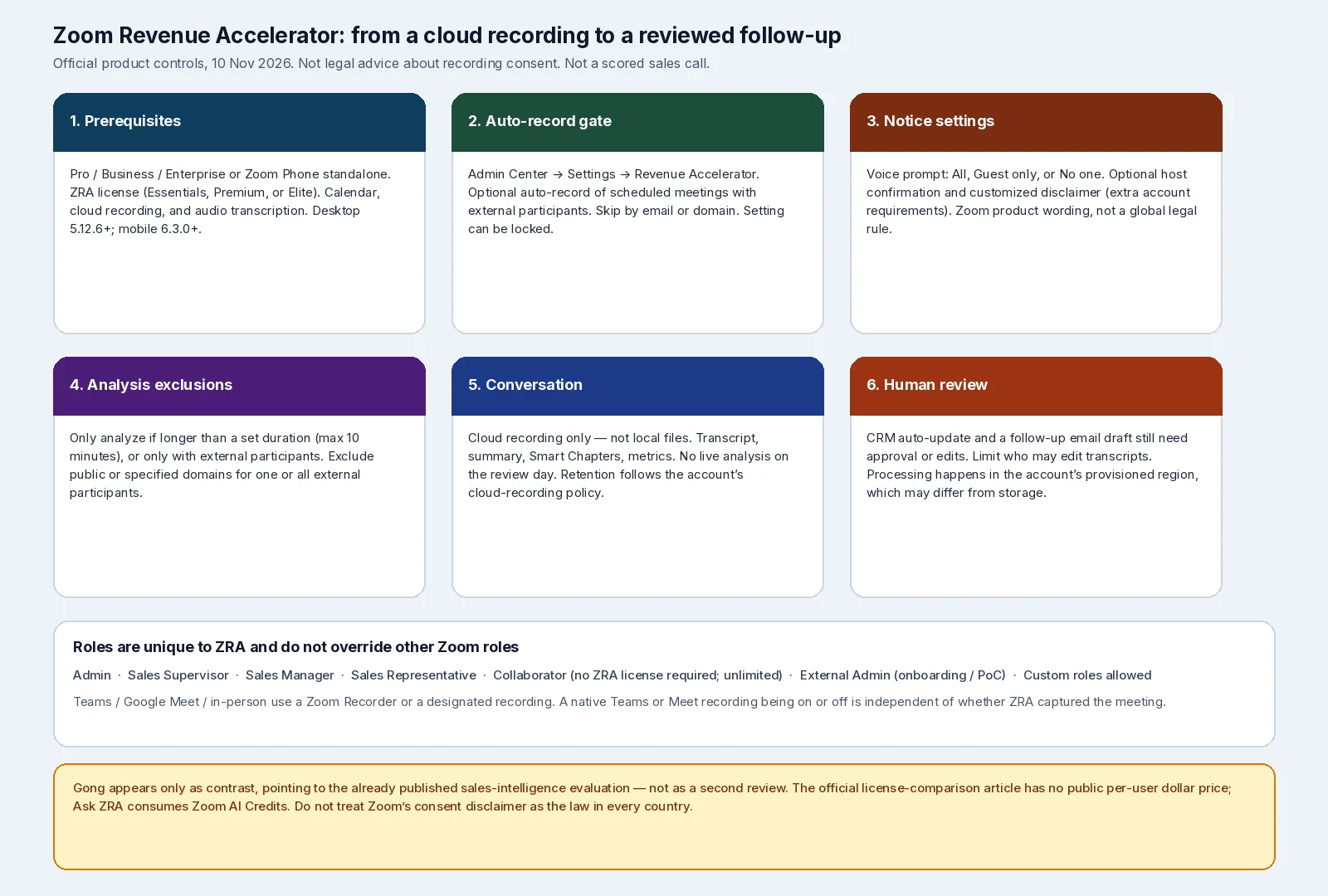
AINav original diagram based on official docs. Sources: Getting started with Zoom Revenue Accelerator, Managing conversation meeting recording access and disclaimers, How ZRA Works, Administrator considerations for ZRA. Not an official screenshot, not a scored sales call, and not legal advice.
中文说明:按 Zoom 官网梳理自动云录制、分析排除、会话与 CRM 草稿复核;不是官方截图,也不是全球法律结论。
Where the recording lives, and where it is analyzed
Conversations are built from those cloud recordings. The getting-started article and the administrator library page both say Zoom Revenue Accelerator recordings follow the same data-retention policies as other cloud recording files. If the account deletes cloud recordings after 30 days, ZRA recordings are removed after 30 days as well. There is no separate retention clock documented on those pages.
Processing location is not the same as storage location. How ZRA Works states that transcripts are analyzed and processed in the region where the Zoom account is provisioned, regardless of where a recording is stored. The official example: a United States-provisioned account that stores some recordings in Germany still has recording and transcript analysis performed on United States infrastructure. An account provisioned in the European region has analysis performed on European infrastructure and, according to that page, does not send the analysis to the United States or elsewhere.
Admins can also limit who may edit transcripts and conversation details. Configuring transcript and conversation detail edit permissions offers: No one; Host only; Internal participants present in the conversation; or Anyone in my account. Admins can optionally be allowed to edit, and the setting can be locked.
A practical order of work if the calls already happen in Zoom
- Confirm cloud recording, audio transcription, calendar integration, and a ZRA license on users who host customer meetings.
- Decide, with your admin and counsel, whether automatic recording for scheduled external meetings should be on, locked, and narrowed by domain or email exclusions.
- Set the voice prompt and, if you use them, host confirmation and disclaimer text, then have counsel review that text. Do not treat a Zoom default as sufficient everywhere.
- Set analysis exclusions so internal, very short, or out-of-scope meetings are not pulled into coaching views by accident.
- Assign ZRA roles separately from general Zoom admin rights. Use Collaborator only where someone needs limited access without a license.
- When a first analyzed conversation appears, check the recording, transcript, summary, and any CRM update or email draft. Keep transcript-edit rights limited.
- Only then decide whether a separate conversation-intelligence platform is still needed for coverage Zoom does not document here.
Gong is relevant in that last step as a product already covered in the published sales-intelligence evaluation, not as a second primary review in this article. This article does not claim Zoom is a substitute for Gong, or the reverse.
What this article did not verify
No live meeting, Zoom Phone call, CRM write-back, or email draft was generated. A public per-user dollar list price was not stated on the official license-comparison article. Zoom AI Credit dollar rates were not taken from a priced page. Language coverage beyond “multiple languages in addition to English” was not itemized from a first-hand table. Nothing here is legal advice about recording or workplace monitoring.