NVIDIA Broadcast app
0/ free software; compatible RTX hardware required
AI Audio Editing Tools
PRODUCT OVERVIEW
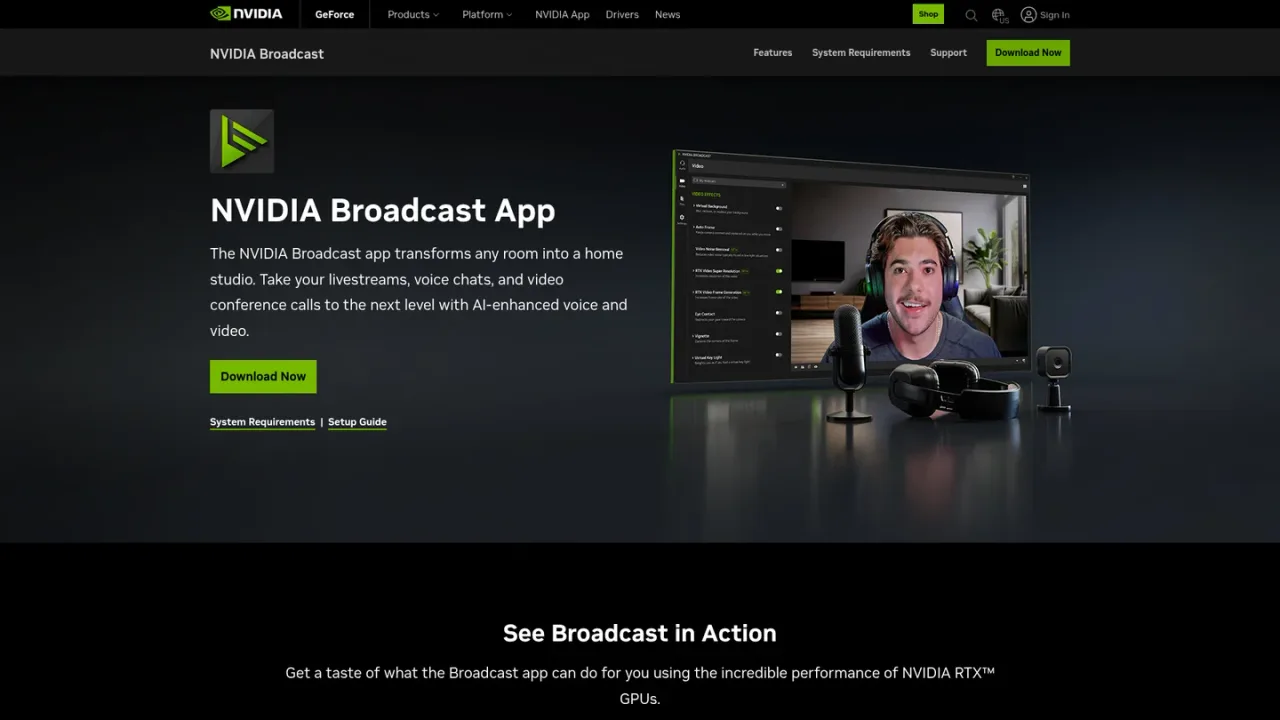
NVIDIA Broadcast is a Windows application from NVIDIA that upgrades standard webcams and microphones with real-time AI effects powered by Tensor Cores on GeForce RTX GPUs. It removes background noise and room echo, applies Studio Voice mic profiles, replaces or blurs webcam backgrounds, auto-frames the camera, corrects eye contact, adds virtual key lighting, and can upscale webcam or file video up to 4K and generate frames. A File Processor applies supported audio and video effects to recorded .mp4, .m4a, .mp3, and .wav files offline, and a local MCP server lets compatible AI agents adjust supported settings. It works with broadcasting, conferencing, and voice chat apps such as OBS Studio, Streamlabs, Discord, Zoom, Microsoft Teams, and Google Meet by exposing virtual devices. The app is available as a download for Windows 10 and Windows 11, including Windows on Arm, and requires an NVIDIA RTX GPU.
Download the NVIDIA Broadcast app for Windows from the official page and install it. Internet connectivity is required during installation so the latest AI models for your GPU can be downloaded.
Open the app and select your microphone, speaker, or camera, then enable the AI effects you want, such as Noise Removal, Virtual Background, or Eye Contact.
In your video or voice chat application, choose the NVIDIA Broadcast virtual camera, microphone, or speaker as the input or output device.
Use the File Processor to add supported .mp4, .m4a, .mp3, or .wav files, preview the input, choose effects, and process them through a queue.
Livestreaming with cleaner audio and a professional-looking webcam feed
Video conferences and remote meetings from rooms without soundproofing
Voice chats with background noise and echo removed
Recording and post-processing video or audio files with AI effects
Controlling Broadcast effects with an Elgato Stream Deck or keyboard shortcuts
NVIDIA Broadcast requires an NVIDIA GeForce RTX 2060, Quadro RTX 3000, TITAN RTX, or higher. Some effects, such as Virtual Key Light, Studio Voice, and RTX Video Super Resolution (beta), require a GeForce RTX 3060 or higher, and RTX Video Frame Generation (beta) requires a GeForce RTX 40 series GPU or newer.
The app supports Windows 10 64-bit, Windows 11 64-bit, and Windows 11 on Arm.
Yes. You can combine multiple microphone, speaker, and camera effects as your GPU can handle, though combining effects increases system impact and not all effects can be combined.
It works with a wide range of broadcasting, video conferencing, and voice chat apps, including OBS Studio, Streamlabs, Xsplit Broadcaster, Discord, TeamSpeak, Skype, Zoom, Webex, Microsoft Teams, Slack, and Google Meet.
NVIDIA Broadcast creates a virtual Windows camera, microphone, or speaker on your PC. You enable effects in the app, then select the NVIDIA Broadcast device from your video or voice chat application.
The File Processor supports standard .mp4, .m4a, .mp3, and .wav files with .h264 (8-bit) and aac codecs and up to 2 audio channels. Fragmented MP4 is not currently supported.
It is a local Model Context Protocol server that lets compatible AI agents on the same computer read and change supported settings, such as enabling or disabling audio and video effects, using the File Processor, and selecting camera, mic, or speaker. The connection is local only.
No. NVIDIA Broadcast uses Tensor Cores on NVIDIA RTX GPUs. RTX Voice is available separately with support for GeForce GTX GPUs for AI noise removal.
Official pricing rechecked 2026-11-10. NVIDIA describes Broadcast as a free app; hardware is not included. Check the current app page for supported GPU and Windows requirements. Individual effects have different hardware requirements.
COMMUNITY REVIEWS
No reviews yet.

Adobe's browser-based audio and video toolkit for enhancing speech, recording and editing podcasts, and creating captions and audiograms.

AI vocal remover and stem splitter that separates vocals, instruments, and noise from audio and video, plus voice cleaning, changing, and cloning tools.

AI voiceover and audio/video editing platform with 1,500+ voice styles, 800+ timbres, 19 languages, and 15 dialects.