guides
How to Evaluate Workplace Chat AI Before You Enable It
A documentation-based guide to enabling native Slack-class chat AI: summaries follow ordinary channel access, and a workflow-posted summary can inherit a longer retention policy than an ephemeral sidebar answer. This is not a remake of the published Glean-class or Microsoft 365 Copilot evaluations. No production workspace was enabled.
Enabling AI inside the chat tool your company already lives in is not the same as buying a horizontal knowledge index, and it is not the same as rolling out Word, Excel, or PowerPoint copilots. The decision is narrower: which channels and people may be summarized, what is retained, and whether a workflow can post an AI answer into a place with a longer retention period than a fleeting sidebar summary.
This documentation-based guide was reviewed on November 21, 2026 (Asia/Shanghai). We did not enable Slack AI on a production workspace or test retention deletions. Descriptions come from official Slack help pages on security and admin access for AI features, opened that day. This article does not remake the published Glean-class or office-copilot evaluations; it points to them when those are the actual jobs.
Three exclusive jobs, one native chat decision
The catalog core here is Slack AI: official native features that summarize conversations, answer questions from workspace knowledge the member can already see, and — on documented higher plans — add recaps, file summaries, and AI workflow steps.
A horizontal enterprise knowledge index is a different purchase. If you need one search layer across many systems, start with how to evaluate enterprise AI knowledge search rather than stretching Slack AI into that role, or stretching Glean, Dropbox Dash, or Atlassian Rovo into a Slack-admin decision.
Office-suite copilots are a third job, covered in how to evaluate workplace AI copilots. Microsoft 365 Copilot belongs in that contrast, not as a padded second row in this related-tools list.
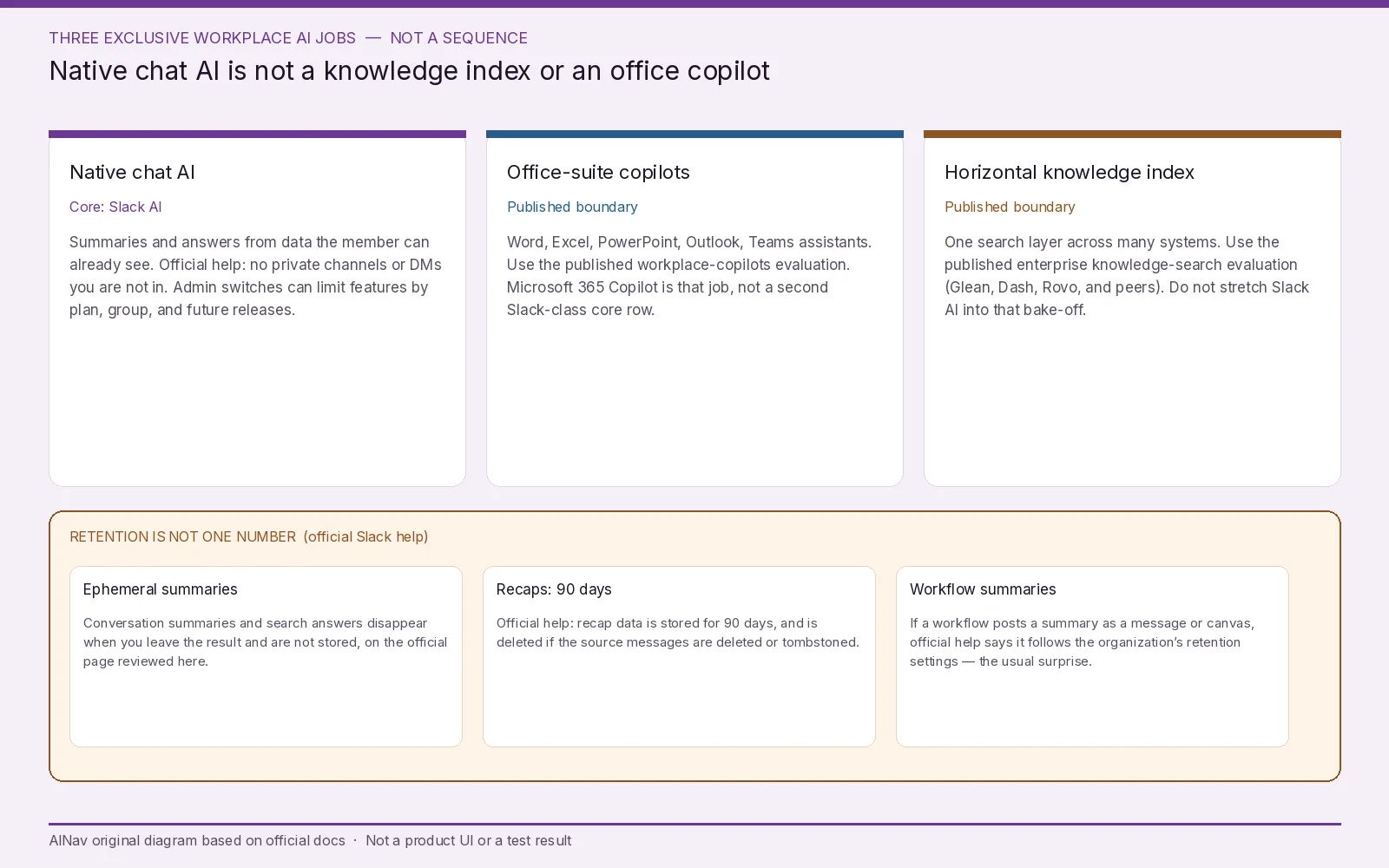
AINav original diagram based on official docs. Sources: Security for AI features in Slack, Manage access to AI features in Slack. Not an official screenshot or a test result.
What official Slack pages say the assistant may see — and may keep
Official Slack security help states that native AI features use third-party large language models hosted in Slack-controlled infrastructure, together with data already in the workspace or organization. Customer data “is never used to train third-party LLMs.” Official text describes retrieval at inference time: only the data needed for the task is sent, and the models “do not retain information once the request has been processed,” even if a model may temporarily cache data in memory.
Channel scope follows ordinary Slack access, not a wider index. Official help says AI features “only use Slack data that members have access to at the time of request and won’t display or use data from private channels or direct messages (DMs) they aren’t a part of.” Summaries and Slackbot responses “will never contain content that you could not otherwise see while reading channels or DMs,” and AI search will not surface results that regular search would not. That is the permission model to test: a person who should not see a private channel should not see it in a recap either.
Retention is not one number. Official help distinguishes three paths:
- Conversation summaries and search answers are ephemeral AI responses. Official language says they disappear when you navigate away or close the result, and that data is not stored on devices or servers.
- Recap data is stored for 90 days so people can revisit it. If the underlying messages are deleted or tombstoned by a deletion or compliance policy, official help says the stored recap is deleted too.
- Channel summaries generated by a workflow step are not ephemeral. If the workflow sends the summary as a message or saves it to a canvas, official help says that message or canvas is retained according to the organization’s data-retention settings.
That third path is the failure condition most teams miss. A sidebar summary can vanish; a workflow that posts the same summary into a channel can outlive the discussion under a “keep forever” retention policy. Official admin docs also let you require review and approval of AI-generated content before it is sent to a third-party app from an AI workflow step, and to restrict whether files or third-party connectors are used in those steps. Turn those controls on before you allow a workflow to leave Slack.
Access is a plan-and-admin question, not a single switch
Official Slack admin help includes a feature-availability table by plan. On the page opened for this review, conversation summaries and huddle notes appear on Pro, Business+, and Enterprise+; search answers, recaps, file summaries, translations, workflow automation, AI workflow steps, canvas generation, and Slackbot are listed on Business+ and Enterprise+; enterprise search is listed on Enterprise+ only. Some workspaces block member feedback on AI responses by default until an admin overrides it. Those rows are entitlements, not a reason to treat directory marketing as the plan matrix. Exact seat prices and promotional discounts are omitted; read the current official plan page for your cycle and region.
Owners and admins can set each feature to everyone, no one, or — on Enterprise Grid and Enterprise+ — specific people and groups, or everyone except specific people and groups. Official help also provides a “future AI feature releases” control so newly shipped features are not automatically turned on. The same article notes that this future-feature setting does not apply to future Slackbot releases: if Slackbot is enabled, new Slackbot functionality can ship automatically, though some capabilities have their own admin setting. To prevent generative AI entirely, official guidance is to turn existing AI features off and block future AI features — and to remember the Slackbot exception.
An enablement check that starts in a sandbox workspace
Use a non-production workspace with fictional channels, including at least one private channel the tester cannot join. Then check five things:
- Job fit. If the gap is Word or Excel, or a company-wide index, use the published copilots or knowledge-search articles instead of enabling chat AI as a substitute.
- Permission parity. Confirm that AI search, summaries, and recaps cannot surface a private channel or DM the member cannot already open.
- Retention path. Decide whether you will allow workflow-generated summaries to be posted as messages or canvases, and what retention policy those objects inherit.
- Admin scope. Turn off features you do not want, decide how new features and Slackbot updates will be handled, and require approval before AI workflow steps send content to a third-party app.
- Plan SKUs. Do not enable a rollout that depends on recaps, file summaries, or enterprise search if official availability for your plan does not include them.
Stop the enablement if a reduced-permission account can see private content through AI, if workflow summaries would be stored longer than policy allows, or if nobody owns the admin switches.
Who this purchase is for, and who should look elsewhere
This evaluation is for workspace admins, internal-comms, and security partners deciding whether to turn Slack’s native AI on in selected workspaces or groups.
It is not a Glean vs Dash vs Rovo remake, and it is not an office-suite rollout guide.
Frequently asked questions
Does Slack use our messages to train models? Official security help says customer data is never used to train third-party LLMs, and that inference data is not retained by the model after the request is processed. Re-check the current AI principles and help article when you enable the feature.
Are all AI summaries ephemeral? No. Official help says sidebar conversation summaries and search answers are ephemeral, recaps are stored for 90 days (and deleted if the source messages are), and workflow-generated summaries follow your organization’s retention settings once posted or saved.
Can we leave Slack AI off for most people but on for a pilot group? Official Enterprise admin controls include “only specific people and groups” and “everyone except” lists. On other paid plans, official help documents everyone-or-no-one feature switches.
Should we buy a knowledge-search platform at the same time? Only if the job is a horizontal index. Exhaust the official native controls first, then use the published knowledge-search evaluation; do not treat this article as that bake-off.