tutorials
Kahoot! AI: generate a quiz from an authorized source, then review every item
Generate or extract questions from an authorized source, then review every stem, answer, and distractor before you host or collect responses. Promotional prices on the school plans page are not evergreen rates.
A PDF or a slide deck can become a kahoot in far less time than it takes to type every item by hand. That is not the same as having a quiz you are ready to host. Official Kahoot! help, updated November 19, 2026 and re-read on November 27, 2026 (Asia/Shanghai), tells you to review all suggested questions and answers before you add them, and it states that you remain responsible for the accuracy and suitability of AI-generated content. This tutorial is for teachers and trainers who want to generate a kahoot from a source they are authorized to use, then check every item before a live session or before they collect responses.
We did not sign in to a Kahoot! account, upload copyrighted courseware, create a class, or collect student data. This article is not a news brief, and it does not treat a marketing claim about learning or retention as a result we measured.
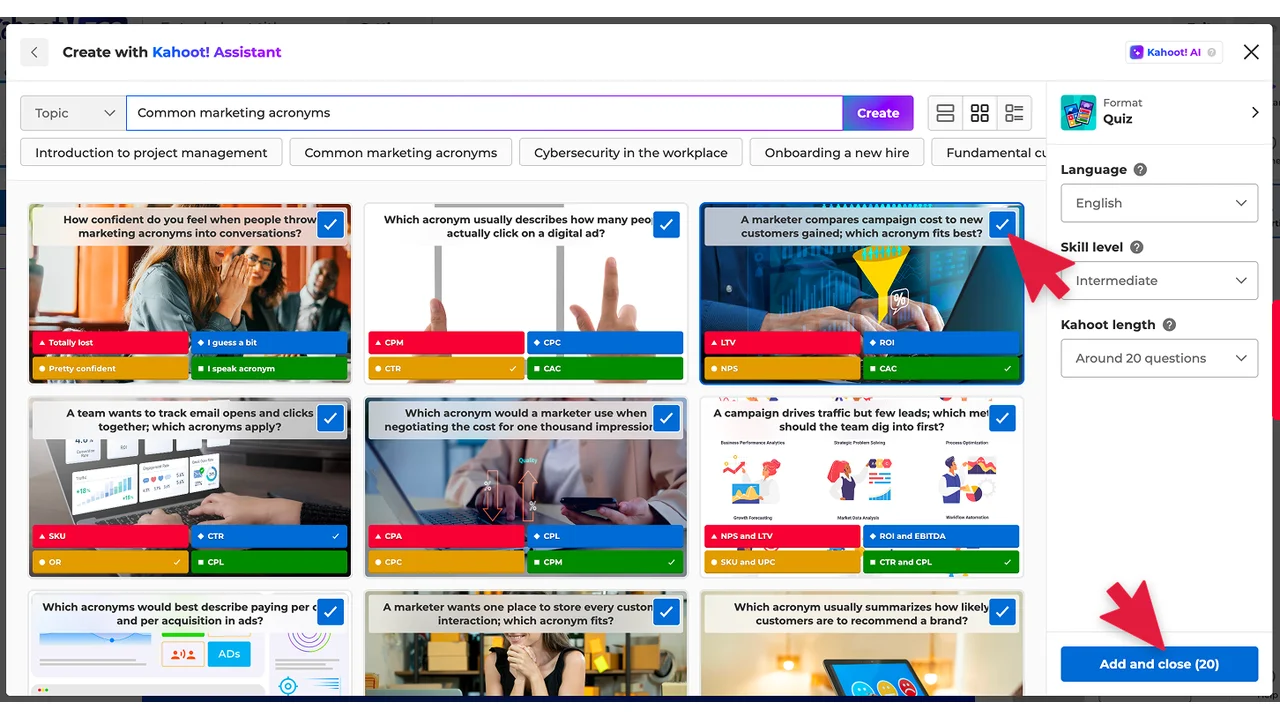
Cover source: Kahoot!'s official help article How to generate a kahoot with AI, acquired November 27, 2026 (Asia/Shanghai). The unaltered official screenshot is in the "Review and add AI-generated questions" section. It shows the Create with Kahoot! Assistant view for a sample topic, Common marketing acronyms, with generated questions selected (blue checkmarks), Skill level set to Intermediate, Kahoot length set to Around 20 questions, and Add and close (20). The red arrows are part of the official help image, not marks we added. The questions, media, and counts are Kahoot!'s official example, not a quiz we generated, hosted, or used with students. No interface values were rewritten. Underlying vendor copyright is retained; no blanket reuse licence was established.
Start only with a source you are authorized to use
Kahoot! AI can turn several kinds of material into questions. Official help lists Topic, PDF, URL, Wikipedia, Slides, and DfE (GOV.UK). That list is about what the generator can read, not about whether you have the right to use the file in front of you. Confirm you are allowed to use the document, webpage, or slides before you upload or paste them. This article does not use, and does not show, copyrighted textbooks or a real student roster.
If you are still deciding whether to pay for an AI tutoring product, that is a different decision from reviewing a generated kahoot; see How to Evaluate AI STEM Tutoring Tools Before You Pay. This tutorial assumes you already have, or are preparing to use, Kahoot! AI, and that the next job is item-level review.
Open the official creator path, then choose a source type
Official help says you log in, click Create → Kahoot, and select Topic to kahoot. You then choose how you want to get started. You can also open the AI creator from inside an existing kahoot: while editing, click Create in the left-side panel, where your slides are listed.
The official source types, re-read today, are:
- Topic — type a short topic, such as the official examples "Dog breeds" or "Space," and click Create. Official help also notes a Perplexity integration that can generate questions from current events if you type a current topic. That is still generated content, and it still needs review.
- PDF — use an existing document such as lecture notes, slides, worksheets, or textbook chapters, after you have confirmed you may use the file. Official help says the generator can process PDF files with around 154 pages. If the PDF already contains questions, you can extract them instead of generating new ones. Official help states that extraction supports Quiz questions only. The official extract steps are: upload the PDF, select the pages you want, turn on Extract questions, and click Extract.
- URL — paste a page URL, such as a blog post, news article, learning resource, or documentation page. Official help notes that some webpages may not be available if their content cannot be accessed or processed.
- Wikipedia — enter the topic of the article you want to use. Official examples include Photosynthesis, The French Revolution, and The Solar System.
- Slides — import and sync a presentation, for example from Google Slides or Microsoft PowerPoint, and let the AI analyze it.
- DfE (GOV.UK) — official help says this feature is currently available to teachers in Great Britain. It uses verified educational resources from the Department for Education, including materials from partners such as Oak National Academy. You type a topic, such as the official example "fractions," and select a resource. Filters such as Primary can narrow the list.
After the source is ready, official help says you click Create, then choose a format that fits the session, for example Quiz, Workshop, or Presentation. It also says available formats may vary depending on your account type and subscription plan. The AI then shows a list of suggested questions and answers. Generation, or extraction, is still a draft.
Review every suggested item before you add it
The official section is titled Review and add AI-generated questions. The steps, re-read today, are:
- Review all suggested questions and answers.
- By default, all generated questions are selected. Uncheck any questions you do not want to include.
- Click Add and close to insert the selected questions and return to the main Kahoot! creator.
- In the creator, you can continue to edit questions, add images or videos, change question types, and create additional questions manually.
- When you are finished, save your kahoot.
The cover image is that review view. Official help also describes settings you can change before you refresh a new set: Kahoot! can create a kahoot in 70 languages, you can set a skill level such as Beginner, Intermediate, or Advanced, and you can choose how many questions or slides to generate. Changing a setting and clicking Refresh produces a new draft. It does not approve the previous one.
When you review an item, check at least the stem, the marked correct answer, the distractors, and any media. Ask whether the item is actually in the authorized source, whether the marked answer is right, whether a distractor is accidentally correct, and whether the wording is appropriate for the class you will host. Official AI Usage Specifications say AI content-generation services can provide inaccurate or biased responses, and that you should carefully review any AI-generated content for accuracy before using it. The same section says you, as the author of a kahoot that uses AI-generated content, remain responsible for its accuracy and suitability, and for compliance with Kahoot!'s terms and policies, including the Editorial Guidelines and Acceptable Use Policy in the Trust Center.
Do not host the kahoot, and do not collect student responses, until that review is done and the kahoot is saved in a state you accept. Official help also notes that owners of a shared workspace that includes AI access can manage AI features in the workspace's Team settings, and that individuals can disable AI tools in Profile settings. Those controls do not replace item review.
Check the plan page on the day you write, and do not freeze a promotion as the price
School and education plans are listed on kahoot.com/schools/plans. On November 27, 2026 (Asia/Shanghai), that page showed the plan names Kahoot! Go, Kahoot!+ Bronze, Kahoot!+ Silver, Kahoot!+ Gold, and Kahoot! One. Official FAQ text on the same page says Kahoot! Go is a free plan for teachers, and that unless a special offer or promotion says otherwise, price is listed per teacher. The same FAQ says the prices displayed include both the annual cost and the monthly breakdown of the annual subscription, but that educational plans are billed upfront for the entire year, and that there is currently no monthly billing option for those educational plans.
On the same date, the page also displayed a Black Friday offer: "Get Kahoot!+ from $3 per month. Save 30%. Offer ends November 27." That promotion ends on the day this article was written. This article does not quote those promotional figures, or any other dollar amount from the price cards, as an ongoing price. Re-check the official plans page for what is current after the offer ends. Directory prices may be out of date, and they are not the source of truth.
Kahoot! 360 is a separate professional line. The URL tried for a 360 plans page on this date returned 404, so this article does not invent 360 prices or mix school and professional plans in one table. If you are buying for a workplace rather than a classroom, confirm the official professional plans page separately. Some official help screenshots show a Kahoot! 360 chrome; that is the vendor's example account, not a claim that every step in this tutorial requires 360.
Generated items are not a measured learning outcome
Kahoot!'s AI tools marketing page describes the product in promotional language, including claims about learning and retention. This tutorial does not adopt those claims as findings. A generated or extracted question is a draft. A reviewed, saved kahoot is a quiz you are willing to host. Neither is evidence that students learned more.
The safe endpoint is an authorized source, a review of every selected item against that source, and a saved kahoot you have accepted before anyone plays or submits answers. A generated list with every checkbox still selected is not that review.