tutorials
Loom AI: review the recording, then turn it into a doc or issue before you share
Turn a Loom recording into an official SOP, guide, or Jira/Linear bug report only after a person has edited the title, summary, steps and screenshots. Plan gates and the pre-purchase-video wording conflict are cited, not settled.
An asynchronous walk-through is often more useful as an editable document or a work item than as a video that still has to be watched in full. Loom AI can turn a recording into a text document, a message, or a bug report that you can submit to Jira or Linear. The safe end of that workflow is a draft a person has reviewed, not a generated file that is shared or a ticket that is created the moment the model finishes.
This tutorial is for people who need to turn one async explanation or bug reproduction into a document or an issue, and who want the official steps, plan boundaries, and review points. It is not a review of meeting-notes products, and it is not an automation-platform tutorial. Official Atlassian Support pages for Loom were reviewed on November 26, 2026 (Asia/Shanghai). We did not sign in to Loom, record a video, or create a Jira or Linear item. AINav has no public /tool pages for Jira or Linear; those names appear here only as official integrations.
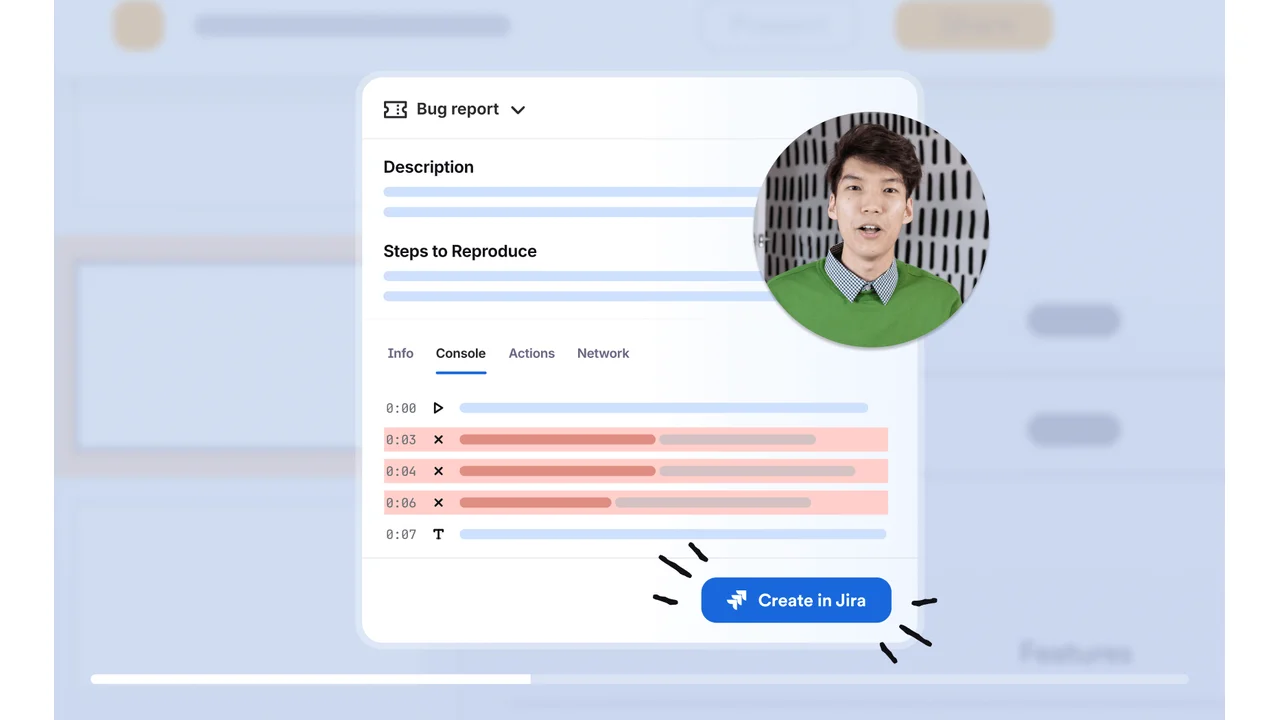
Cover source: official product illustration from Atlassian's blog post Turn Loom meetings and bug reports into Jira work with AI (image file csd-25089-blog_supporting-images.png), acquired November 26, 2026 (Asia/Shanghai). The illustration shows a Bug report card with Description, Steps to Reproduce, and a Create in Jira button. The Atlassian Support article Use AI workflows did not include a UI screenshot on this date, so this official blog illustration is used instead. Placeholder bars are not real ticket text; the person and decorative marks are part of the official artwork. This is not an AINav recording or a work item we created. No interface values were rewritten. Underlying vendor copyright is retained; no blanket reuse licence was established.
Confirm the plan and the entry point before you generate
Use AI workflows states that Loom AI workflows are only available on Loom's AI Suite, and points to Atlassian's page on upgrading to or downgrading from Business + AI. The Loom AI features article says most Loom AI features are included on Business + AI and Enterprise plans, while auto titles are now available on all Loom plans, including Starter (Free), Business, and Education. First-party Jira creation, on the workflows page, requires a Business + AI or Enterprise workspace with AI enabled. Current prices should be re-checked on official billing or plan pages before you treat a quote as settled; this tutorial does not invent a per-seat price.
The features article also describes a 14-day Business + AI trial that includes the Loom AI suite and is not provided to Education plans. Auto titles remain available on all plans after a trial ends.
AI workflows will not appear in every recording context. The workflows page lists three cases where they will not generate: the video has no speech; the video was recorded before you purchased a plan with Loom AI; or you are using a Loom mobile app (you need to visit loom.com on a desktop device). The same page's FAQ adds that mobile apps do not currently support AI workflows, and that a video recorded on mobile must be opened in a desktop browser to reach them.
The features page does not use the same wording about videos recorded before purchase, so do not freeze a single rule from one article. In the body of Loom AI features, auto titles are available on all plans for new recordings, and "all other Loom AI features are available for videos recorded after purchasing Business + AI or Enterprise." In the FAQ on that same page, auto summaries, chapters, and tasks can only be applied to videos recorded after purchasing Business + AI or Enterprise, while filler word and silence removal and AI workflows can be applied to videos recorded before purchase. If your recording predates an AI purchase, check both pages and what your workspace actually offers that day, and treat the result as needing verification rather than as a conflict this tutorial can settle.
Review the recording, then generate a document
After you have recorded a video, the workflows page says Loom AI will automatically turn it into a text document based on the transcript. Official templates are SOP, Step-by-step guide, PR description, QA steps, and Code docs. Choose the template that matches the job, then edit the document in Loom's text editor before you copy anything.
The page also says Loom will automatically incorporate screenshots from the recording into the relevant steps, and that you can delete a screenshot manually. Videos that have been trimmed or stitched will not include these screenshots. If the recording was edited that way, do not assume the document still has visual context; add stills yourself or re-record if the steps depend on them.
When the text and screenshots are accurate, select Copy text. "Ready to share," in the official wording, is not the same as "already approved." The features page describes auto titles, auto summaries, and auto chapters as generated from the transcript; review those as well, and edit anything that overstates the recording, names the wrong audience, or invents a next step. Do not paste the copy into a wiki, pull request, or customer-facing page until a person has checked that the title, summary, steps, names, and links match the recording and your actual process.
The features page states that OpenAI receives transcript data as text to generate titles, summaries, chapters, and text documents, and does not receive video or audio. It also states that Google Gemini receives video and audio to generate Action Plans for AI Agents, and that official providers do not retain inputs and outputs or use them to improve their services. Those are vendor statements from the help article, not an audit we performed.
Review the bug report before you create a work item
For a defect, the workflows page says that after recording, Loom AI will generate a report that includes a short description, steps to reproduce, and a link to the video, which you can submit to Jira or Linear. Read that description and those steps against the recording before you create anything. If a step is missing, a severity is overstated, or a project is wrong, fix it in the editor. A generated report is a draft.
First-party Jira requires all of the following, according to the workflows page: your Loom account is linked to an Atlassian account; your Loom workspace is on a Business + AI or Enterprise plan with AI enabled; and you have an active Jira site connected to the same email address. If you do not meet those requirements, the page says you can still use the third-party Jira integration. The first-party path is: select Create in Jira, fill out work item details in the pop-up, and select Create in Jira again when the report is satisfactory; you should then be redirected to the new work item. Full custom-field support, the FAQ says, is only available via the first-party integration.
Third-party Jira starts with Link Jira, a login pop-up, and choosing a workspace, after which you return to the video share page. Loom AI fills out the Jira project, type, and priority, which you can edit, then you select Create in Jira. The page notes that linking works for a single Jira workspace; if you are signed into more than one, you may need to revoke the app in Jira and reauthorize the other workspace. Authorization errors may require a Jira admin to complete a first successful link.
Linear follows a similar official sequence: Link Linear, log in, choose a workspace, return to the share page, review the project, type, and priority that Loom AI filled out, then select Create in Linear.
Do not treat a successful redirect as evidence that this tutorial created a ticket. We did not.
Watch the boundaries that remain after generation
If workflows still do not generate and the three "will not generate" conditions do not apply, the workflows page says to refresh the Loom share page. The FAQ also says AI workflows are generated on demand, so they should reflect edited video content—while the earlier screenshot rule still holds: trimmed or stitched videos will not include those screenshots.
Automatically generated call-to-action buttons, described on the features page as buttons based on the webpages you recorded, are not an approved external statement. Review or remove them before a recording is shared outside the team.
On mobile, the features page says AI summaries, titles, and chapters are supported on the Loom iOS app, and that the Android app is not supported. That is a separate limit from the workflows rule, which still requires a desktop browser even if the video was recorded on a phone.
If you only needed a recorded meeting turned into action items, that is a different task from this async recording-to-document or recording-to-issue workflow; see From a recorded internal meeting to action items with Fathom or MeetGeek. Do not treat those tools as interchangeable with Loom AI workflows.
The safe endpoint is a document or work-item draft whose title, summary, steps, and screenshots a person has edited, and only then a copy, a share, or a create action in Jira or Linear.