tutorials
Slack AI: review the channel summary or recap, then check the sources before you act
Open More details or the citations before you assign work or reply. Recap, conversation summaries, and marketing daily recaps are different features; the Help Center table, not a pricing-card name, is the plan-availability source of truth.
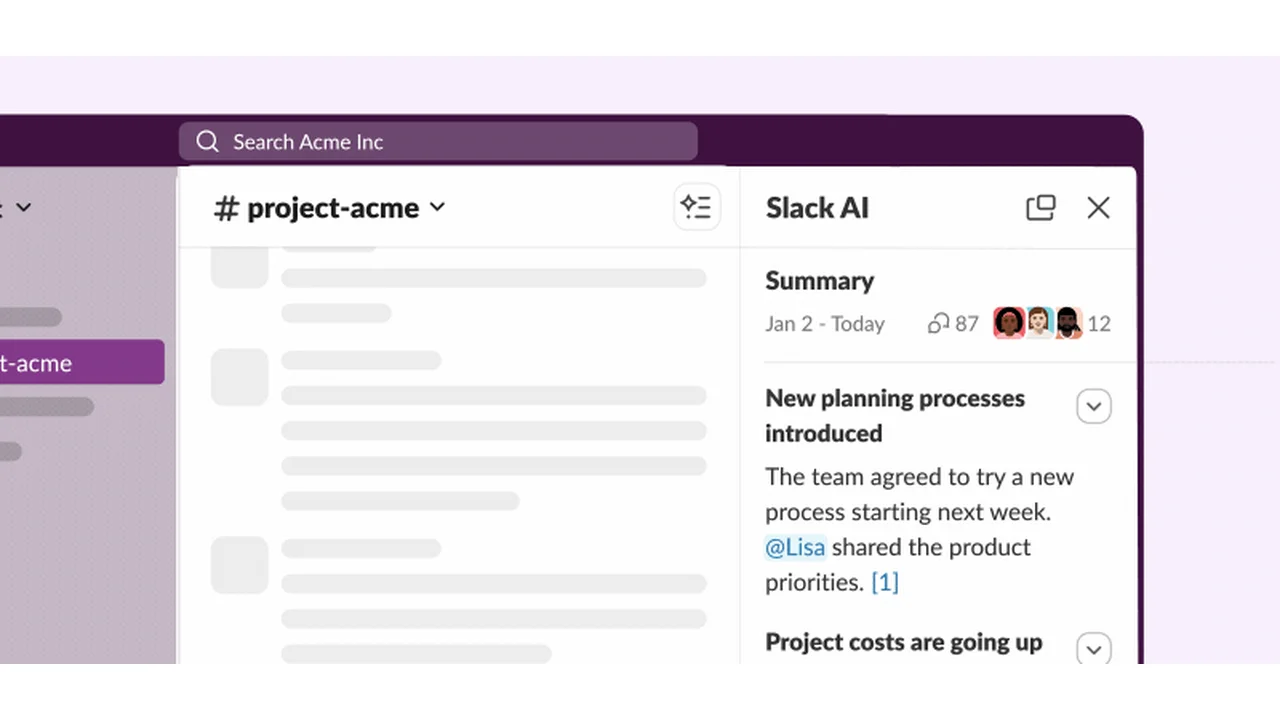
A channel can move while you are away. Slack AI can summarize a channel, a direct message, or a thread, and it can prepare a Recap of unread channels after time away. Official help also describes search answers with citations, and a share flow that asks you to review the answer before it goes out. None of that is a complete record, and none of it is an approved action. Open the sources, then decide what to do.
Official Slack help and the public pricing page were reviewed on November 28, 2026 (Asia/Shanghai). We did not sign in to a Slack workspace, generate a live summary, or share a search answer. This article does not claim that any particular summary is complete or correct, and it does not treat marketing plan-card names as the same thing as the Help Center feature table.
Cover source: Slack's official Help Center article Guide to AI features in Slack, acquired November 28, 2026 (Asia/Shanghai). The cover is a still frame from Slack's official animated screenshot, captioned "Generating a summary with Slack AI." It shows a Slack AI Summary panel beside the official sample channel #project-acme in a sample workspace named Acme Inc, with a date range of Jan 2–Today, citation markers such as [1], and a heading "New planning processes introduced." The workspace name, channel, people, and summary text are Slack's official documentation example, not a workspace we joined and not a summary we generated. No interface values were rewritten. Underlying vendor copyright is retained; no blanket reuse licence was established.
Treat a summary as a starting point, not a complete record
Official help, Guide to AI features in Slack, says you can get up to speed in a channel, a DM, or a thread, whether you are joining a new conversation, returning from time off, or catching up on a fast-moving discussion. That is a useful starting point. It is not a substitute for the underlying messages, and it is not permission to assign work, reply, or change a decision on the strength of the summary alone.
The same guide is explicit about scope: AI-generated responses only include information available to you, such as messages and other content from public channels, and any private channels and direct messages you belong to. A summary cannot show you what you cannot already access. If a decision happened in a channel you are not in, the summary will not invent that context for you.
If you are still deciding whether to turn workplace chat AI on at all, see How to Evaluate Workplace Chat AI Before You Enable It. This article is not that evaluation. It is the check you do after a summary or Recap is already in front of you, before you act.
Conversation summaries, Recaps, and daily recaps are not the same feature
These names get flattened on marketing pages. They are not one product path.
A conversation summary is an on-demand summarize action for a channel, a DM, or a thread. You choose a range—unread messages, the last seven days, or a custom date range on desktop—and Slack generates a summary when it is ready.
A Recap, in the Help Center, is a separate section: a customized summary of unread channels, with a new recap every morning, coverage of however many days you were away, and a refresh if you open it more than once a day. You set up which channels to include, and you can mute or unmute them from Recap settings. That is a morning digest and a catch-up feed. It is not the same control as Summarize channel or Summarize conversation.
The marketing pricing page uses still other labels, including "Basic AI," "AI conversation summaries," and "AI daily recaps." Those names are useful as packaging contrast. They are not a reason to treat Recap, conversation summaries, and daily recaps as the same feature, and they are not the plan-availability source of truth. That source is the Help Center feature table, discussed later in this article.
Summarize a channel, DM, or thread, then open the sources
Official desktop steps for a channel or DM are: open the conversation, click the three dots icon at the top, select Summarize channel or Summarize conversation, and choose a range. For a thread, open the thread and click the Summarize button at the top. When the summary is ready, official help says you can click the More details icon to view the summary's sources. On mobile, a badge on the Summarize icon indicates that the summary is ready.
Do that click. A heading that sounds decisive is not evidence. The sources are the messages and files the summary drew from. Read the ones that matter for the action you are about to take.
Official help also notes that summaries can take longer to generate for larger time frames or message histories, and that Slack will notify you when a summary is ready. This article does not invent a typical generation time. If a long range is still running, wait for that notification rather than guessing that the summary is finished.
The cover image is that official sample Summary panel: a generated catch-up beside a channel, with citation markers in the text. It is Slack's documentation example, not a live workspace test.
Use Recap for a morning catch-up when it is on your plan
Recap is for channels you want to keep up with without being interrupted all day. Official help says that when you set Recap up for the first time, Slack may recommend channels you visit often but do not tend to participate in. After you review those channels and turn Recaps on, you can mute them to tidy the sidebar, or unmute conversations you want to watch more closely.
To read a Recap on desktop, official help says you click Recap in the sidebar, review it, and click More details to review a recap's sources. You can also remove a channel from future recaps. To change the set, click Manage Recap, add or uncheck conversations, set mute toggles, and click Save. If you open the Recap more than once in a day, you can refresh it to see new updates. If you were away for several days, official help says the Recap covers however many days you were gone.
That is still a summary of unread channels, not a complete archive, and not an instruction to act. Use More details the same way you would for an on-demand conversation summary.
Recaps are not listed on every plan. Check the Help Center table before you assume the sidebar control is available.
Review a search answer before you share it
Official help also describes asking a question in your own words and getting a concise answer based on relevant information in Slack. Answers include citations to the source messages or files. You can hover over a citation to preview the source, or click it to open the message or file.
If you want to share a helpful answer, official help is specific about the order: click Share, review the answer, then click Share anyway to send it to a channel or DM. Do not skip the review. A cited answer can still omit a caveat, collapse a disagreement, or point at a thread that was later superseded.
Message explanations are a related, quieter tool: official help says they break down a complex or acronym-heavy message to help you understand it, and that the explanation is not visible to anyone else until you choose to share it. Explanations also have a Sources control. Use it. This article does not treat an explanation as a public record of what the original message "meant."
Use the Help Center feature table, not marketing card names, for plan availability
The AI features available to you depend on your Slack plan, your role, and whether admins have restricted access. For what is included, treat the Help Center feature table as the source of truth.
As of November 28, 2026 (Asia/Shanghai), that table lists columns for Pro, Business+, and Enterprise+ only. There is no Free column. Conversation summaries, huddle notes, and automatic search filters are listed for Pro, Business+, and Enterprise+. Message explanations, search answers, Recaps, file summaries, translations, workflow automation, canvas content generation, and Slackbot are listed for Business+ and Enterprise+ only. Enterprise search is listed for Enterprise+ only. A footnote says that members with access to Slackbot will see Ask Slackbot instead of Explain, and that search answers will come from Slackbot. A note says customers on the Free and Pro plans may have access to Slackbot through a limited preview.
The public pricing page, reviewed the same day, uses different marketing names and should not override that table. In the live HTML of the plan cards, every listed AI feature on the Free card—including Basic AI, AI conversation summaries, Slackbot, AI workflow generation, AI search, AI daily recaps, and AI file summaries—is greyed out. On Pro, only Basic AI and AI conversation summaries are included; Slackbot, AI workflow generation, AI search, AI daily recaps, and AI file summaries are greyed out. Business+ and Enterprise+ include the higher-tier AI items, with Enterprise+ labeling search as Enterprise search and Slackbot as "with no weekly message limits." A flattened text scrape of those cards can look as if Free includes the AI names. It does not, in the live HTML.
A pricing FAQ on the same page says that soon, Slack users across every plan will be able to try Slackbot; that Free and Pro users will have a limited trial experience; and that ongoing Slackbot access will continue to be available to Business+ and Enterprise+ customers. That is a trial statement, not a reason to write that Pro certainly includes Slackbot, Recaps, file summaries, or search answers. Those features stay on Business+ and Enterprise+ in the Help Center table, except for the limited Free/Pro Slackbot preview or trial.
Re-check the Help Center table and slack.com/pricing if you are reading this later. This article does not freeze a directory price or a marketing tile as a standing availability list.
A short checklist before you act on a summary
Before you assign work, reply, or treat a catch-up as settled:
- You know whether you are looking at an on-demand conversation summary, a Recap, or a search answer. Those are different controls.
- You have opened More details or the citations, and you have read the source messages or files that matter for the action.
- The content is something you already have access to. A summary cannot add a private channel you are not in.
- If you are about to share a search answer, you have used Review the answer and have not treated Share anyway as a rubber stamp.
- You have checked plan availability against the Help Center feature table, not against a greyed-out name on a marketing card. Recaps, search answers, file summaries, and Slackbot are not a sure thing on Pro.
- You have not waited on an invented generation-time number. Official help only says larger ranges can take longer, and that Slack will notify you when a summary is ready.
The safe endpoint is a summary whose sources you have opened, on a feature your plan actually includes. A Recap that sounds complete is not that review.