tutorials
Gemini in Google Sheets: verify the formula against a known result before you share
Insert is not the same as verified. Generate a formula in Gemini in Google Sheets, then check it against a small sample whose result you already know before you share the file.
Inserting a formula is not the same as verifying it. Official Google help for Collaborate with Gemini in Google Sheets shows how to generate a formula and click Insert. It also, in the same help center, reminds you that Gemini in Workspace can make mistakes and that you should double-check responses. This tutorial is for people who already use Google Sheets, or are preparing to, and want an official way to check a generated formula against a known result before they share the file or rely on it.
Official Google documentation and Workspace pricing were reviewed on November 27, 2026 (Asia/Shanghai). We did not sign in to a Google Workspace account, open a real workplace spreadsheet, or run Gemini on customer or payroll data. The small example later in this article is a fictional five-row table. This is not a buying guide for spreadsheet copilots, and it is not a comparison with Microsoft Excel.
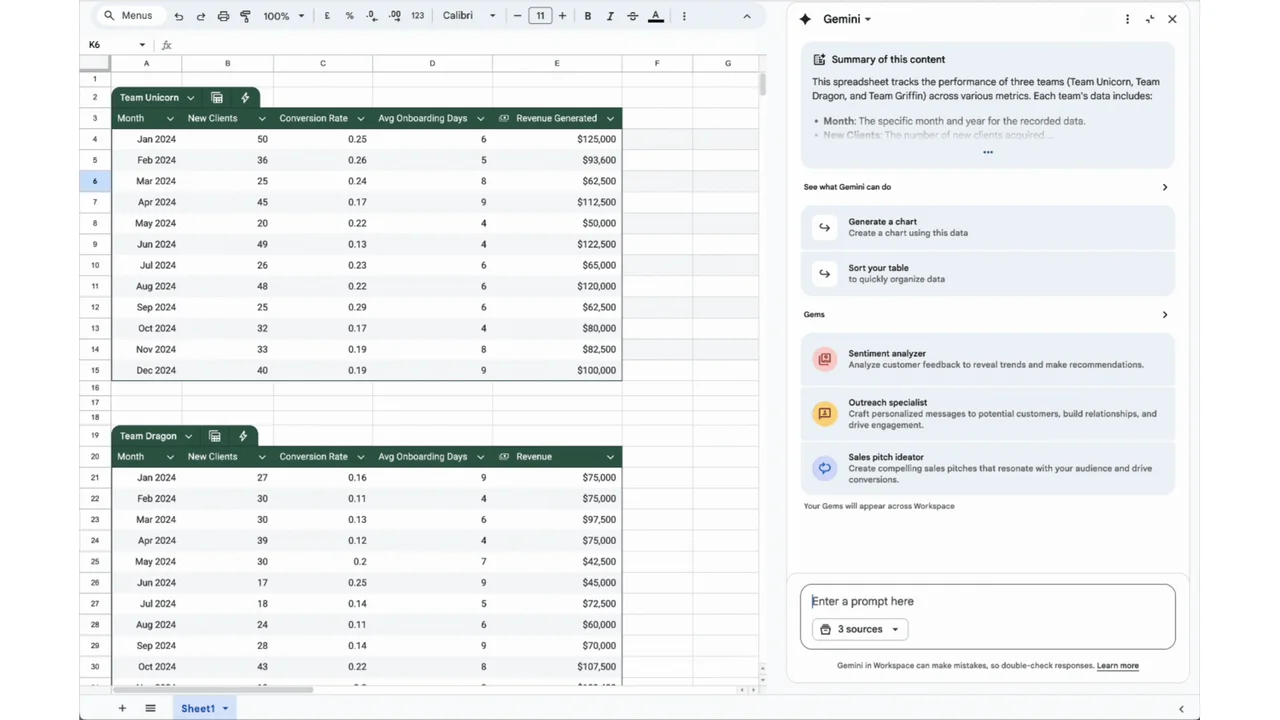
Cover source: Google's official help article Collaborate with Gemini in Google Sheets, acquired November 27, 2026 (Asia/Shanghai). The unaltered official documentation image, labeled "Use Gemini to generate tables," shows a spreadsheet with sample tables Team Unicorn and Team Dragon and the Gemini side panel, including a summary, suggested actions, a prompt box, and the official footer "Gemini in Workspace can make mistakes, so double-check responses." The names, months, and figures (including conversion rates and revenue amounts) are Google's official sample data, not AINav data and not a workbook we opened. This cover shows the Ask Gemini panel in Sheets, not a verified formula insertion. No interface values were rewritten. Underlying vendor copyright is retained; no blanket reuse licence was established.
Do not share a generated formula just because it inserted cleanly
A formula can look well formed and still use the wrong range, the wrong reference type, or a function that does not match the question you asked. Official help lists Insert as the control that puts generated output into the spreadsheet. Insert does not mean the result has been checked against a known answer. Until you have done that check on a small sample, do not share the file as the source of a decision, and do not treat a generated insight as an audited financial conclusion.
Gemini in Google Sheets can also summarize a sheet, create tables, generate charts, and answer questions about the data. Those outputs have the same boundary. This tutorial stays on formulas because that is the step teams most often share without a second look.
Confirm eligibility, then work in a native Google Sheet
Official help states that this feature requires an eligible Google Workspace or Google AI plan, and that it is also available through the trusted tester program, Google Workspace Experiments. It does not say that every Workspace user has Gemini in Sheets by default. Confirm eligibility in your organization's plan before you treat the side panel as something every colleague can open.
Re-check Google Workspace pricing for current plan names and rates. On November 27, 2026 (Asia/Shanghai), the official pricing page listed regular prices of $7, $14, and $22 per user per month for Starter, Standard, and Plus, and it also advertised a 50% off window from December 10, 2026, through March 10, 2027. Those figures are what the official page showed on this date, not a quote from the AINav directory, and the promotional window is not the regular rate. This tutorial does not turn those numbers into a recommendation to buy a plan.
Official help also says the feature works best with native Google Sheets files. To use Gemini features in an Excel file (.xlsx), you should select File and then Save as Google Sheets. If the workbook you were handed is still an Excel file, convert it first, or you will be troubleshooting the wrong problem.
Do not run this check on a production sheet that contains real customer records, payroll, or other data you would not be allowed to share. Use a copy, or a small synthetic sample.
Open Ask Gemini and generate the formula through the official path
Official help says: on your computer, open a spreadsheet from Google Sheets, then click Ask Gemini at the top right. In the side panel, you can select a suggested prompt or write your own, then press Enter.
For formulas, official help adds a second starting point. You can start from any cell and enter =, then use a shortcut that was listed on the help page on this date: Ctrl + Alt + g on Windows and Chrome OS, and ⌘ + Ctrl + g on Mac OS. This article does not invent other shortcuts. If your build of Sheets does not offer that shortcut, follow the Ask Gemini button and the on-screen prompt instead, and re-check the help page.
In the side panel, official help says you create your own prompt using references from your sheet or generic cell names. Official example prompts include "Create a formula that divides goals by games" and "Create a formula to find cell C1 in range D:G and output value in column G." To add the formula to the spreadsheet, you click the cell where you want it and click Insert. Retry generates a different response. Insert is the beginning of the verification step, not the end of it.
Official help also describes Fix formula errors with Gemini: when a cell shows an error message, you can hover over the cell and click Fix, and Gemini reviews the formula. Cancel with Stop in the side panel if you need to. A suggested fix is still a suggestion. Check it the same way you would check a formula you inserted yourself.
Check the formula on a small sample whose result you already know
Build or copy a tiny table where you can compute the expected result by hand. The following sample is fictional. It is not customer data, and we did not enter it into Google Sheets or run Gemini against it.
Imagine five rows of a workshop kit: quantity in column A and unit price in column B, with line total in column C.
- Row 2: 3 units at 12.00, expected line total 36.00
- Row 3: 1 unit at 12.00, expected line total 12.00
- Row 4: 0 units at 12.00, expected line total 0.00
- Row 5: 4 units at 7.50, expected line total 30.00
- Row 6: 2 units at 7.50, expected line total 15.00
If you asked Gemini for a line-total formula in C2, the known answer for that row is 36.00, and the known sum of column C is 93.00. After you insert the formula, look at the formula bar, not only the formatted cell. Confirm the ranges, and confirm whether the formula used relative references (so it can fill down) or absolute references (so a fill does not point at the wrong cells). Then fill only these five rows and compare each result with the hand-calculated values, including the zero-quantity row. If any row disagrees, do not fill the formula down a larger sheet and do not share the file.
Typical failure modes to look for, in the formula you actually inserted, are a range that starts on the header or skips a row, a mix of relative and absolute references that breaks when filled, a function that returns a blank or an error such as #DIV/0!, #REF!, or #VALUE! on a case you care about, or a formula that happens to match one sample row but does not match the rest. Official help does not replace that check with a confidence score, and this article does not invent one.
If you later ask Gemini for an insight or a chart, official help offers Analysis steps and, for charts, a Preview before insert. Those controls are useful, but they are still not a substitute for a known-result check when the output is a formula other people will reuse.
Minimize data, then share only after the check passes
Share the spreadsheet only after the sample check matches and you understand the formula in the formula bar. Before you share, reduce the file to the data the recipients need, and confirm the sharing permissions you actually intend: viewer, commenter, or editor. Do not use a real payroll or customer sheet as the demo environment.
A purchase-time comparison of spreadsheet assistants is a different job. See How to Evaluate AI Spreadsheet Copilots Before You Commit if that is the decision in front of you. This tutorial is the verification step inside Google Sheets. Copilot in Excel is a different product, in a different spreadsheet application. This article does not rank the two, and it does not transfer these shortcuts or steps to Excel.
The safe endpoint is a native Google Sheet, a formula you have inserted, and a small sample whose hand-calculated results match the sheet. An Insert click is not that check.