guides
Missing text in MarkItDown? Check extraction, OCR and Azure routes
Diagnose missing text, broken tables and reading order before changing prompts. Separate local MarkItDown conversion, image OCR and approved Azure backends.
A Markdown file can look tidy and still be the wrong representation of its source. A missing table header changes what a number means. A two-column page read across the middle creates sentences that never existed. When a downstream assistant gives an implausible answer, inspect the extraction before changing the prompt.
MarkItDown is Microsoft's file-to-Markdown utility, not a document chat service or a promise of print-quality conversion. This guide separates three jobs: recovering native text locally, recognizing text inside images, and using a cloud document backend. It is based on official documentation reviewed on November 25, 2026; the commands are documented examples, not results from a hands-on benchmark.
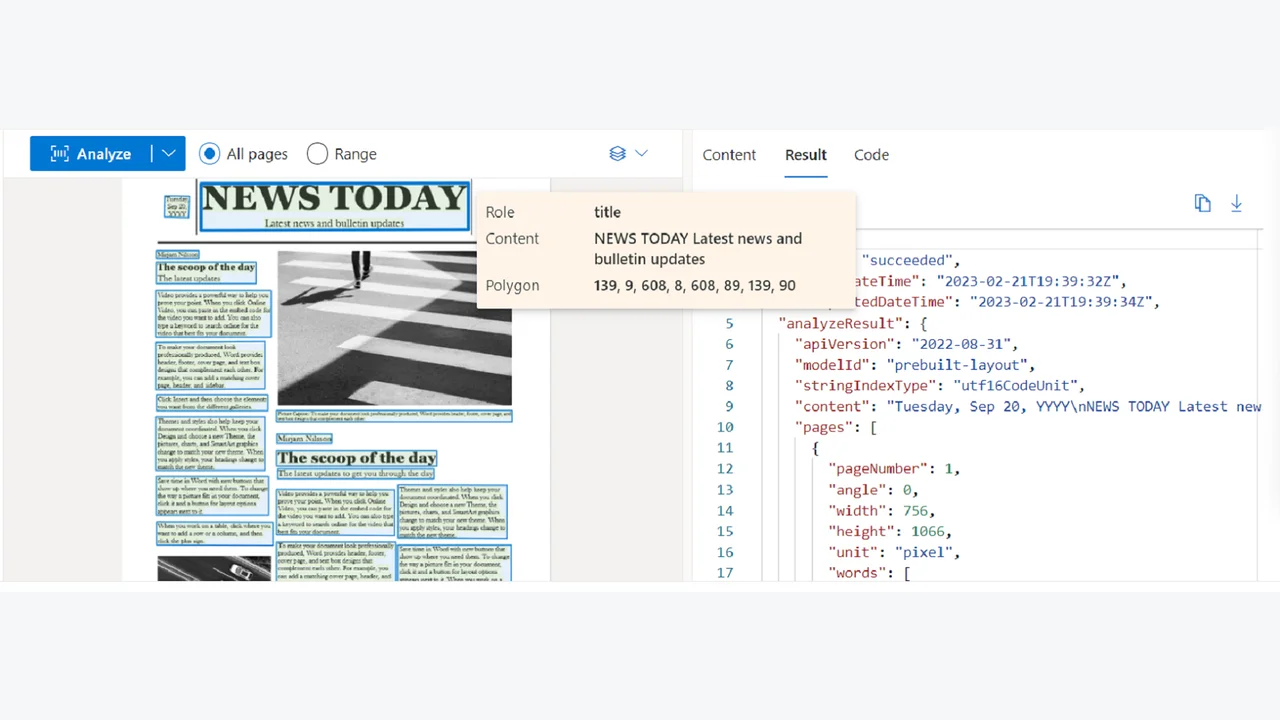
Cover: Microsoft Learn, Document Intelligence overview, image retrieved November 25, 2026 (Asia/Shanghai). It shows a document beside layout-analysis output in Microsoft’s official example, not a MarkItDown GUI or an AINav test. The image contains older API-version text; it illustrates layout, not the API version to deploy today.
First diagnose the source, not the file extension
A PDF may contain selectable text, page-sized scans, or a mixture of both. The extension alone does not tell you which extraction route is appropriate. Start with a non-sensitive representative page. Check whether you can select a particular sentence in a normal viewer, then compare that sentence with the extracted Markdown. Selection is a useful diagnostic, not proof that every page has a usable text layer.
For a troublesome table, record the exact page, row label, column header, unit and any footnote. For a slide deck, identify whether the missing sentence is editable slide text or part of an embedded picture. These observations narrow the problem. Reinstalling every optional dependency does not reconstruct words that only exist as pixels.
The official README describes preservation of useful headings, lists, tables and links for text-analysis pipelines, while warning that MarkItDown may not be the right tool for high-fidelity human-facing conversion. That distinction matters: a readable summary is not a faithful facsimile, and a faithful-looking Markdown table is not automatically accurate.
Use a small diagnostic record:
| Symptom | First thing to inspect | Do not infer |
|---|---|---|
| A scanned page produces little text | Whether that page contains native text | That a successful command means OCR ran |
| Words appear in the wrong sequence | Columns, sidebars and reading order | That the source author wrote that sentence |
| Table values lost their meaning | Headers, merged cells, units and footnotes | That every pipe-delimited row is correct |
| Office text is missing from a picture | Whether image-text extraction is enabled | That native Office support includes all image content |
Establish a local baseline with minimal moving parts
The current README lists Python 3.10 through 3.14 and recommends an isolated environment. Its selective installation example is:
pip install 'markitdown[pdf, docx, pptx]'
markitdown path-to-file.pdf -o document.md
Choose extras for the formats you actually need; this example is not an instruction to install unrelated cloud integrations. Preserve the original document and write output to a separate location. Record the package version, chosen extras and command alongside the result. That makes a later change in extraction behavior traceable rather than mysterious.
Check the first, middle and last relevant sections, not just the opening paragraph. Search for a distinctive phrase and inspect its neighboring text. Compare a table total with the source, then confirm that the row and column labels survived. A plausible total under the wrong heading is still a failure.
If native text is present but the output is unsuitable for layout-sensitive work, stop treating Markdown as the final deliverable. Keep the PDF available for inspection, and attach page references to any extracted evidence. For a broader operational process, see our document automation and IDP guide; this article focuses on the extraction fault before that workflow begins.
Missing image text is an OCR question
The README now documents a markitdown-ocr plugin for text embedded in PDF, DOCX, PPTX and XLSX images. It uses a configured vision-capable LLM client, rather than turning every file conversion into a purely local OCR operation. Plugins are disabled by default in MarkItDown. Installing a plugin, enabling it and supplying its required client are separate checks.
A particularly important documented behavior: without an llm_client, the OCR plugin can load but skip OCR and fall back to the normal converter. That makes “the conversion finished” a weak success signal. Look for the actual missing text in the output and inspect your configuration before assuming the image was recognized.
This is also a privacy boundary. The README explicitly notes that image captioning and speech transcription rely on web-hosted services. A local Python process does not mean every optional capability is offline. Before enabling a provider, determine what bytes leave the machine, which service receives them, what account is billed, and which retention and data-use terms apply. Do not use a confidential document to discover those answers.
If the task requires guaranteed offline processing, a cloud-backed OCR route is not a quiet fallback. It is a different deployment choice that needs approval. This guide does not establish that any particular provider's retention policy meets your organization's requirements.
When to move to an Azure document route
Azure Document Intelligence in Foundry Tools, listed in our directory as Azure AI Document Intelligence, offers document analysis rather than a general-purpose chat wrapper. Its layout documentation describes extraction of text and structural information such as tables. MarkItDown lists an Azure Document Intelligence integration as an optional dependency; Azure Content Understanding is another, distinct backend.
Microsoft's Content Understanding integration guide contrasts built-in format-specific conversion with cloud layout and multimodal extraction. That is a routing distinction, not proof that a cloud result will be correct for your document. Keep the same difficult page and the same checks when comparing routes.
A useful reason to investigate the cloud option is that your input genuinely needs layout or image recognition that the current local path is not delivering. An unhelpful reason is that the downstream assistant wrote a disappointing paragraph. Test the intermediate extraction first; otherwise you cannot tell whether a different backend solved the actual problem.
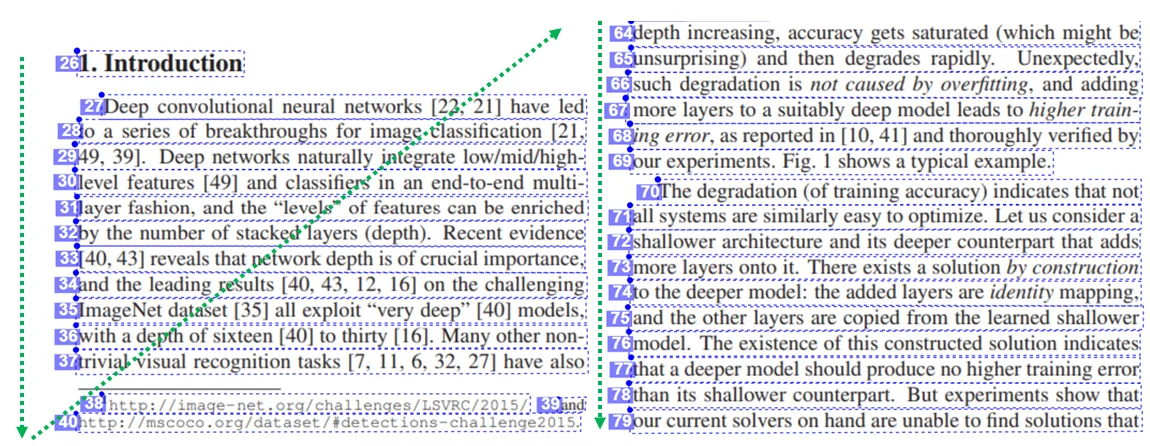
Source: Microsoft Learn, Document Intelligence layout documentation, retrieved November 25, 2026 (Asia/Shanghai). The numbered text regions and arrows illustrate reading order across columns. This is an official documentation example, not an AINav test or a MarkItDown screenshot.
Azure API calls can be billable in addition to local compute. This article does not quote a per-page rate: model, tier, region and selected features matter, and a trial allowance should not be assumed to cover production. Verify the chosen Azure service's current pricing and your resource configuration before submitting files.
Put boundaries around files, URLs and the extracted text
The README warns that MarkItDown performs I/O with the permissions of its process. Its general conversion interface should not be treated as a security sandbox. For an upload service, constrain the permitted input type, use the narrowest appropriate local or stream conversion function, restrict filesystem and network access, and set resource limits. Those are deployment controls, not properties bestowed by the .md extension.
Keep untrusted document content separate from instructions. A PDF can contain a sentence telling an assistant to reveal another file or send a message. Converting it to Markdown does not grant that sentence authority. The next stage should treat the output as evidence to analyze, not permission to invoke tools.
Preserve provenance as a separate record: original filename, source URL if relevant, access date, document version, page references and conversion settings. This complements our source-first research workflow. Clean text without a recoverable source is convenient to paste but difficult to audit.
A concrete exit condition
Before admitting the result to a knowledge base, verify a representative narrative passage, a difficult table and one image-derived passage when applicable. Record unresolved omissions instead of silently filling them with generated text. If a number cannot be traced to the source, exclude it from automatic answers or mark it for human verification.
The right endpoint may be local Markdown, an approved cloud extraction, or no automated ingestion for that document. Success is not the existence of document.md; it is a traceable representation that preserves the information your next task actually depends on.