growth
Shopify Sidekick: review the draft theme and product copy before you publish
Sidekick drafts theme and product changes for your review. A Tested by Sidekick or add-to-cart badge is an AI simulation, not real conversion. Publish only after you have opened the draft.
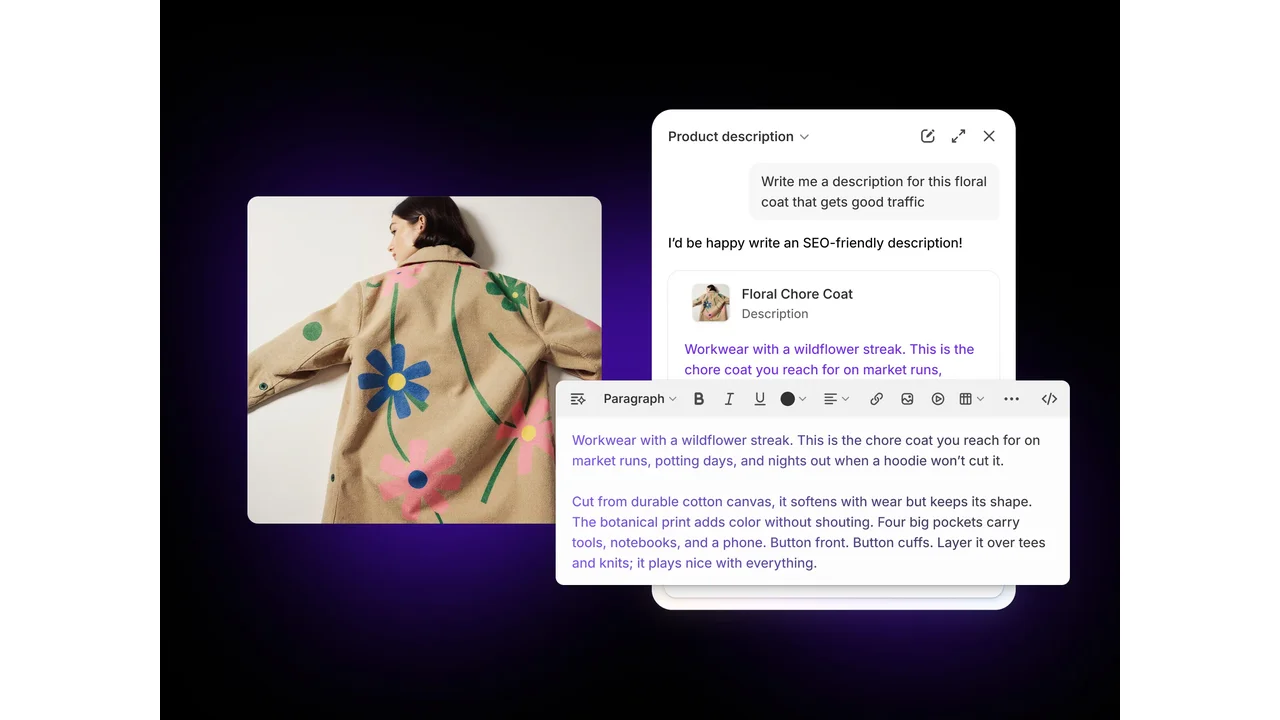
Sidekick can draft a theme change or a product description in minutes. That speed is useful only if you still treat the result as a draft. The official Shopify Help Center states that Shopify Sidekick does not change your live store without your approval, and that you review changes before they are applied. This growth guide is for merchants who already use Shopify, or are preparing to, and want an official way to review those drafts before anything reaches customers.
Official Shopify documentation and pricing were reviewed on November 27, 2026 (Asia/Shanghai). We did not sign in to a merchant admin, publish a theme, run SimGym, or edit a live catalog. Nothing in this article is a conversion result or a claim that a suggestion will work in your store.
Cover source: Shopify's official Sidekick page, acquired November 27, 2026 (Asia/Shanghai). The unaltered official marketing image shows a Product description panel for a sample Floral Chore Coat, with the prompt "Write me a description for this floral coat that gets good traffic" and a draft description in an editor. The product photo, prompt, and copy are Shopify's official example, not an AINav store and not a description we generated or published. No interface values were rewritten. The HTML Help Center articles were blocked by a bot challenge on this date; the facts below come from Shopify's official Help Center markdown on the same URLs, re-fetched today. This cover shows draft product copy, not a Home suggestion card, a Tested by Sidekick badge, or an unpublished theme. Underlying vendor copyright is retained; no blanket reuse licence was established.
Review comes first, not publish
A suggestion that sounds confident is still a suggestion. Official help for Sidekick suggestions (formerly Pulse) says Sidekick does not change your live store without your approval. The getting started article lists the same limit. The help and guidance article is more specific for store edits: when you ask Sidekick to change your store, such as editing several products or updating a collection, Sidekick drafts the changes first. Your live store does not change until you review those drafts and publish them. Sidekick can speed up drafting. The live catalog, the live theme, and the price a customer sees should change only after a person has checked the draft.
Open Sidekick, then open the suggestion as a to-do list
Shopify's Sidekick page says you start by opening your Shopify admin and clicking the purple glasses icon. Help documentation adds that you can also chat from Shopify Home or from other admin pages, using text or voice, on desktop, in a mobile browser, or in the Shopify app.
Sidekick suggestions appear as cards with suggested actions on the Home page. Official help says up to five suggested actions are displayed at a time, and that they are available only to some stores with recent sales activity. To get them, you need to be the store owner or a staff member with admin access, and you need to have Shopify Network Intelligence activated.
Official steps are: go to Home, select the action on a card, and let Sidekick open a conversation and build a to-do list. In the conversation, review the to-do list and follow the prompts. The same article says the suggestion links to the sources Sidekick used, such as pages in your admin or on the web. Open those sources. A card is not the same thing as a source you have checked. Some cards can use data from installed apps; official help says Sidekick only reads that app data, does not change anything in your apps, and asks for your approval before it uses an app in a conversation.
Theme suggestions start as an unpublished copy, not a live redesign
Some cards suggest a change to your online store theme. Official help says Sidekick can test this type of change before the card is displayed. It builds the change into an unpublished copy of your live theme. Then SimGym, a separate Shopify app, compares that copy with your live theme in simulated shopping sessions.
If the copy has a higher add-to-cart rate than your live theme, the card displays Tested by Sidekick. Some cards also display an Add-to-cart rate badge. A card can also display Review suggested changes without Tested by Sidekick, which official help says means the test did not find a higher add-to-cart rate, but you can still review the changes.
Those badges are not evidence of real customer conversion. Official SimGym documentation states that simulations use AI shoppers that mimic customer behavior, but results might differ from how your actual customers behave. This article did not run SimGym and does not treat a badge in a documentation or marketing example as a result for your storefront.
Sidekick does not test every suggestion. Official help says it tests only changes that display on desktop and that are meant to help customers add products to their cart, and that your store also needs to be able to use Canvas with your live theme. Your live theme does not change when you review a tested suggestion. Customers view the changes only after you publish the draft theme, and the test result does not describe edits you later make to the draft.
The official review steps are: on a card, click Review suggested changes; when the draft is ready, click Review the draft in Canvas or Preview the unpublished storefront; only then, optionally, publish the draft theme in Canvas. Official help says the draft is added to your theme library as [Sidekick] Suggested theme, followed by the date and time it was created. Preview is not the same as publish.
SimGym is a separate app. There is no AINav /tool page for it, and this article does not invent one. Official eligibility requires a Liquid storefront (Hydrogen and headless are not supported), Shopify Network Intelligence activated, no permanent password page, an active plan, and at least one non-gift-card product published to the Online Store sales channel with a price above zero. Official SimGym pricing, re-read on November 27, 2026 (Asia/Shanghai), includes a monthly allowance that renews on the first day of each month; unused simulations do not carry over. After you reach that limit, official overage prices on that date were $0.75 USD for a single-theme simulation and $1.50 USD for a theme comparison. Re-check that page before you treat an overage amount as current.
Review product copy and other store changes before you publish
For other store edits, official help describes a Store changes card in the Sidekick conversation. It lists each type of change, how many of that type were drafted, and whether you have reviewed them. You can review and publish a whole set together.
Official considerations: store changes are not available in the Shopify app, so use desktop or a mobile browser; you must review each type of change before you can publish the set; a set can hold up to 50 changes; drafts expire 10 days after the latest update; published changes cannot be undone automatically; and if publishing does more than the listed changes, such as clearing a field on every item, a Check this before you publish banner describes what happens. Read that banner.
If Sidekick drafts only one change, official help says you click Start review, check the editor or table, and click Publish or Publish all changes. If it drafts more than one change, you start the review, mark each type as reviewed, optionally turn on Show original, and only then publish. Edits you make during review are saved to the draft, not to your live store. Discard removes every change in the set and leaves the live store as it is.
Treat generated product copy the same way. Official documentation on generating content with Sidekick says fields Sidekick fills in are highlighted in purple so you can review them before you accept them, including product descriptions. Official best practices say you are responsible for the changes you accept, especially anything that affects what customers experience or buy. Before you publish, check that facts, claims, prices, and discounts match what you actually sell, and that product images, generated images, and reference photos are yours to use. Official help notes that generated images can sometimes be unexpected or low quality.
If you are comparing third-party background-removal tools for product photos, that is a different job from reviewing a Sidekick suggestion inside your admin; see Remove.bg vs Clipdrop vs Photoshop on the Web for Product Photo Cleanup only when that is the decision you are actually making.
Confirm plan limits, then decide whether you can publish
Sidekick's official FAQ, on the Sidekick page, says Sidekick is included with your Shopify plan, and that features and usage limits vary by plan. The same page says every staff member can use Sidekick based on their admin permissions. Official help for suggestion cards is narrower: they require the store owner or a staff member with admin access, plus Shopify Network Intelligence, and they are available only to some stores with recent sales activity. Chat access is not the same as seeing Home suggestion cards.
Re-check shopify.com/pricing before you treat a subscription price as settled. On November 27, 2026 (Asia/Shanghai), the official pricing page listed Pay yearly rates of $29 USD/month for Basic, $79 USD/month for Grow, and $299 USD/month for Advanced, and Pay monthly rates of $39 USD/month, $105 USD/month, and $399 USD/month for those same plans. It listed Plus as a higher plan. The same page advertised a promotional trial: three days free, then $1 per month for three months, after which standard monthly pricing applies. That introductory offer is not the standard price, and it should not be written down as an evergreen rate.
Stay in review, or discard the set, when you have not opened the draft theme or previewed the unpublished storefront; when the only "evidence" for a theme change is a Tested by Sidekick or add-to-cart badge; when you have not checked product facts, images, prices, or discount conditions; when a Check this before you publish banner is still unread; or when official help says your current surface, such as the Shopify app, cannot review and publish store changes.
For a broader checklist a small team can use when shipping a new product site, see Shipping an AI Product as a Small Team: A Prep Checklist from First Website Draft to Showcase Assets. That article is launch preparation. This one is the review you do inside Shopify admin before a Sidekick draft becomes the live store.
The safe endpoint is a draft you have opened, a source you have checked, and a publish action you chose on purpose. A suggestion card, a simulated add-to-cart rate, or a generated paragraph is not that decision.