workflows
Draft a document, deck, and spreadsheet with WPS AI
A followable official path for WPS AI inside Writer, Slides, and Sheets, taken from international Help Center articles opened on 10 November 2026. Smart Create, Rewrite, AI Generate Pages, and AI Sheet Assistant are walked step by step, with human review gates. Feature-level “no limit on the number of times” notes are kept separate from the official buy page’s Pro+ daily usage cap. Dollar list prices are omitted because the buy-page widget was not reliably readable. This is not a Copilot bake-off.
Draft a document, deck, and spreadsheet with WPS AI
WPS AI is not a second office suite. It is the official AI layer inside WPS Office — Writer, Presentation (Slides), Spreadsheet, and PDF — on the international product sites wps.com and wps.ai. If your team already drafts in WPS, the practical question is whether those built-in paths will get you a first document, a first deck, and a first table you can actually edit, not whether you should run a bake-off against another vendor’s marketing table.
This article follows official Help Center steps opened on 10 November 2026 (Asia/Shanghai) for Smart Create and Rewrite in documents, AI Generate Pages in Slides, and AI Sheet Assistant in spreadsheets. It is a documentation path you can walk, with human review at each accept step. It is not a “look before you buy” checklist, and it is not a Microsoft Copilot comparison. If you still need a workplace-copilot rollout frame or a spreadsheet-only buying frame, those already exist in How to Evaluate Workplace AI Copilots Before You Roll Them Out and How to Evaluate AI Spreadsheet Copilots Before You Commit. If the real job is a team wiki rather than a file in WPS, see Notion AI vs Superhuman Docs (formerly Coda) for Team Docs and Wikis.
How this article was written
Official international pages on wps.ai, wps.com, and help.wps.com were opened first-hand on 10 November 2026 (Asia/Shanghai). Those Help Center articles are published by WPS SOFTWARE PTE. LTD. (Singapore). No WPS account was signed in, no plan was purchased, and no document, deck, or workbook was generated for this article. Menu names and click paths below are taken from the official help articles cited. Example prompts are labeled as examples. Numeric list prices were not reliably extracted from the JavaScript pricing widget on wps.com/buy, so they are not invented. Regional sites such as wps.cn and ai.wps.cn were not treated as the same product; their plans and menus are not assumed to match this international path.
Before you start: where WPS AI lives, and plan language to watch
On the international site, WPS AI is described as available inside WPS Office. The wps.ai FAQ states that AI is available in the free WPS Office client, and that “Higher AI daily limits and advanced AI features are available on optional WPS Pro+.”
These official pages use two different kinds of limit language, and they should be kept separate rather than flattened into one entitlement:
- Feature-level, in the Help Center notes for Smart Create, AI Rewrite, and AI Sheet Assistant: “There is no limit on the number of times WPS Plus and Premium members can use” each of those features. The membership line on the same articles is “Available for both WPS Pro+ and WPS Premium.” Official pages therefore mix the names Pro+, Premium, and Plus; this article does not invent a single plan name to cover them.
- Plan-level, on the official buy page: “Pro+ includes AI features with a daily usage limit. Once you reach it, AI tools pause until the next day.” That is a global daily cap on Pro+ AI tools, not the same claim as the per-feature “number of times” notes.
Confirm the badge and the remaining daily allowance in your own WPS client before you rely on a long session. The help-article wording does not, by itself, cancel the buy-page daily cap.
Install or update to the latest version from the official WPS website when a help article lists that as a version limit. Then work in the file type you actually need — a Writer document, a Slides file, or a workbook — instead of asking one chat window to stand in for all three.
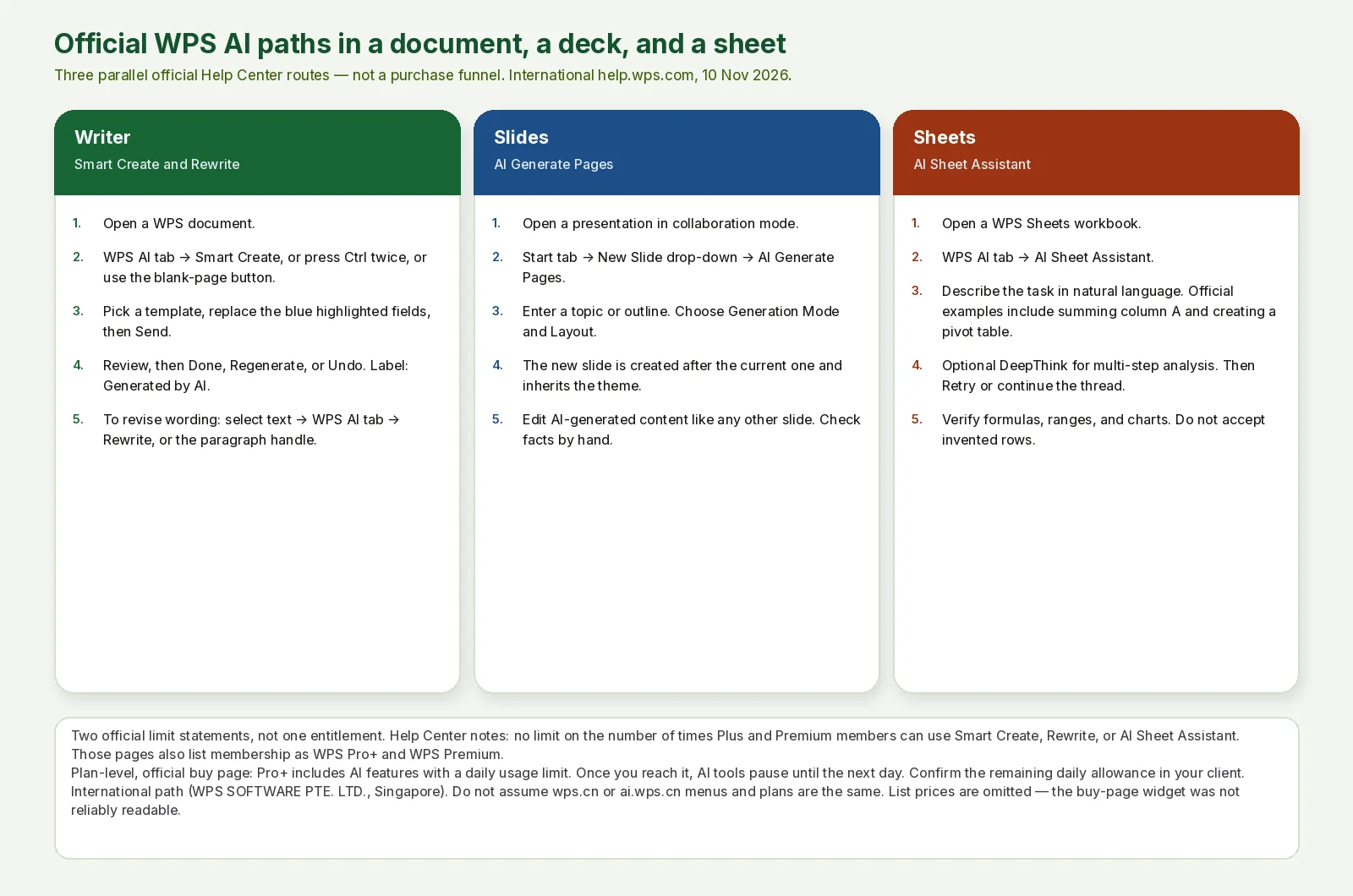
AINav original diagram based on official docs. Sources: WPS AI (international), WPS AI features, Smart Create with templates, AI Rewrite, AI Generate Pages in Slides, AI Sheet Assistant, WPS purchase page. Not an official screenshot or a test result.
中文说明:按官方帮助中心路径并行展示文档 Smart Create/Rewrite、幻灯 AI Generate Pages、表格 AI Sheet Assistant,不是购买流程,也不是界面截图或实测。
Path 1 — Draft and revise a document in Writer
Official help for Smart Create with templates gives three documented entries, all ending in the same AI writing input box:
- Open a WPS Office document. Open the WPS AI tab on the top menu bar and click Smart Create (pen icon).
- Or open a blank document and use the default prompt in the editing area: the help article says the page tells you to press Ctrl twice to wake WPS AI, and you can click the floating Smart Create button.
- Or, in an open document, press the Ctrl key twice in rapid succession and click the Smart Create button that appears.
In the input box, official help shows a template list in the lower-left corner. Documented primary categories include Reflection, Meeting Minutes, Notice (with a secondary list such as General, Meeting, Holiday, Interview, Activity, Appointment/Dismissal, Training, and Award), Application, Certificate, plus Explore Prompts, Smart Edit, and More AI Features. Pick a template. The template body is inserted with key fields in blue highlight boxes; replace those with your actual facts — the official example is changing a generic team-building line to a named event such as “Mid-Autumn Festival Party.” Then click Send.
When generation finishes, the official bottom toolbar offers Done (accept), Regenerate, and Undo. A Generated by AI label is documented at the bottom. Treat Done as a review gate, not as a publish button: check names, dates, figures, and whether the template’s remaining boilerplate still says something untrue.
To revise existing wording, official AI Rewrite help gives two entries. Select the text first. Then either open the WPS AI tab and click Rewrite, or use the paragraph handle and choose Rewrite. The help article says the original text is shown in gray and the rewrite is highlighted, with the same Done / Undo / Regenerate toolbar. Official FAQ wording claims Rewrite keeps the core information while changing the expression; still read the result. If the passage is wrong, Undo is the documented way back.
These two Writer paths are the official route for a first draft and a rewrite. Other Writer features advertised on wps.ai — summarize, translate, continue writing — exist as product surfaces, but this article only walks click paths that were fully opened in Help Center articles.
Path 2 — Build slides from a topic or outline
In WPS Slides collaboration mode, official help documents several ways to add a slide, including a blank page and a layout. The AI path is:
- Select the slide after which the new slide should appear.
- Open the Start tab. Click the New Slide drop-down arrow (not only the main button).
- Choose AI Generate Pages.
- Enter the topic or outline as prompted.
- Select Generation Mode and Layout.
- Wait for the generated slide, then edit it as ordinary slide content.
The same help article states that this collaboration-mode “new slide” set of options has no membership limits and no version limits, and that a new slide inherits the current theme. That “no membership limits” line is specific to this article; it is not a blanket statement about every WPS AI feature. Official FAQ: AI-generated content can be edited like regular content. After generation, check the outline against your facts, replace placeholder claims, and fix layout collisions by hand. An example topic you might type — not a prompt we ran — is: “Example: quarterly product update for a 12-minute team meeting, four sections, no invented metrics.”
Path 3 — Ask the spreadsheet to do the next operation
Official AI Sheet Assistant help is a natural-language path inside a workbook:
- Open a WPS Sheets document.
- Open the WPS AI tab and click AI Sheet Assistant. A floating window appears.
- Describe the sheet task in the input box. Official examples include “Help me generate any number from 1 to 100,” “Sum the data in column A,” and “Create a pivot table.”
- Optionally enable DeepThink, which official help describes as a more detailed analysis mode for complex, multi-step requirements.
- Send the task. After it finishes, read the conclusion, note the Generated by AI label, and either Retry, continue in the same thread, or go back with the official “← AI Quick Q&A” control.
Documented task types include data cleaning, classification and summarization, chart generation, data calculation, pivot tables, and conditional filtering. Membership is described as WPS Pro+ and WPS Premium, with the same feature-level “no limit on the number of times” note for Plus and Premium members. That note is still not the same as the buy page’s plan-level Pro+ daily usage cap described above.
An example follow-on request, not a live test: “Example: after summing column A, add a one-sentence note of what the total represents, and do not invent rows that are not in the sheet.” Then verify formulas, ranges, and charts yourself. AI-written formulas are not a substitute for checking that the range and the aggregation match the question you asked.
After each path: accept, label, and stop
Across Writer, Slides, and Sheets, the official accept controls are some combination of Done, Regenerate, Retry, and Undo, plus a Generated by AI label. Use them. If a daily cap pauses Pro+ AI until the next day, that pause is documented on the buy page; it is not a bug to work around. Do not paste confidential figures into a prompt if your organization’s policy forbids it — this article did not extract a complete first-hand WPS training-and-retention policy, so it does not invent one.
List prices in dollars are omitted on purpose. The buy page opened on 10 November 2026 did not yield a reliably readable numeric sticker from the pricing widget, and unverified marketing claims (user counts, “faster by n,” formula accuracy) are also omitted. Re-check wps.com/buy in your own session for the current PC and Android prices, and do not assume a China-region SKU from wps.cn applies to this international path.
If WPS AI covers the file in front of you, you do not need a second copilot for that file. If you need a shared wiki, an org-wide assistant rollout, or a spreadsheet tool outside WPS, use the published articles linked above rather than stretching this path into a procurement matrix.